 AIU Home


FAQ
FAQ(English)
Library Website is not operating normally. (Recommended browsers)
Category:
0. Getting Started
Recommended browsers
We recommend using the latest versions of the following browsers so that Library website is easy to use:
Windows
- Internet Explorer
- Mozilla Firefox
- Google Chrome
Macintosh
- Safari
Notice
These browsers do not operate normally with the following settings. Change these settings when applicable.
- Cookies setting: Disable
- Compatibility View setting: Enable (Internet Explorer)
- Referer setting: Disable
* If the Referer setting in your browser is Disable, the browser does not operate normally. After enabling Referer, access OPAC again.
* It is possible for the content to be displayed as follows when the compatibility view is turned on with Internet Explorer8.
- The column width of specific items in the bibliography details holdings list narrows drastically.
- A gray line borders each bibliography in the search result list.
★What can I find with OPAC?
Category:
0. Getting Started
- Bib Search: Books and serials in our collection
- Article Search: Articles, etc. accessible domestically
- Other Univ.: Books, serials, etc. in the possession of university libraries, etc. nationwide
- Cross Search: Materials in the possession of national universities, the National Diet Library, bookstores, etc.
Switch to and use the tab appropriate to the search target and materials.
For details, see the respective tab.
★I would like an explanation of matters such as how to use each database, how to find materials, and how to use the library effectively.
Category:
0. Getting Started
I'm looking for a material titled _____. How should I begin?
Category:
0. Getting Started
[AIU Catalog] tab allows you to search books in print.
If you do not find the book with [AIU Catalog] tab, you may get it from the Akita Prefectural Library for a fee of charge.
You can search the book with [Akita Pref Lib] tab.
If you still do not find the book, you can search and borrow from other universities with a fee. You can search from the [Other Univ.] tab.
2. To search books in print or digital
[ONE-Search] tab allows you to search books print and digital.
3. To search a journal in print
[AIU Catalog] tab allows you to search journals in print.
4. To search a journal in print or digital
[ONE-Search] tab allows you to search journals both in print and digital. [ONE-Search] tab also allows you to search journal articles. After the first search, use the filter on the left side of the screen to refine your search.
5. To search a journal articl
[ONE-Search] tab allows you to search journal articles. After the first search, use the filter on the left side of the screen to refine your search. To perfom a search within a specific search site, use Advanced Search.
The pop-up blocker appears when I reserve or copy materials or apply for an inter-library loan.
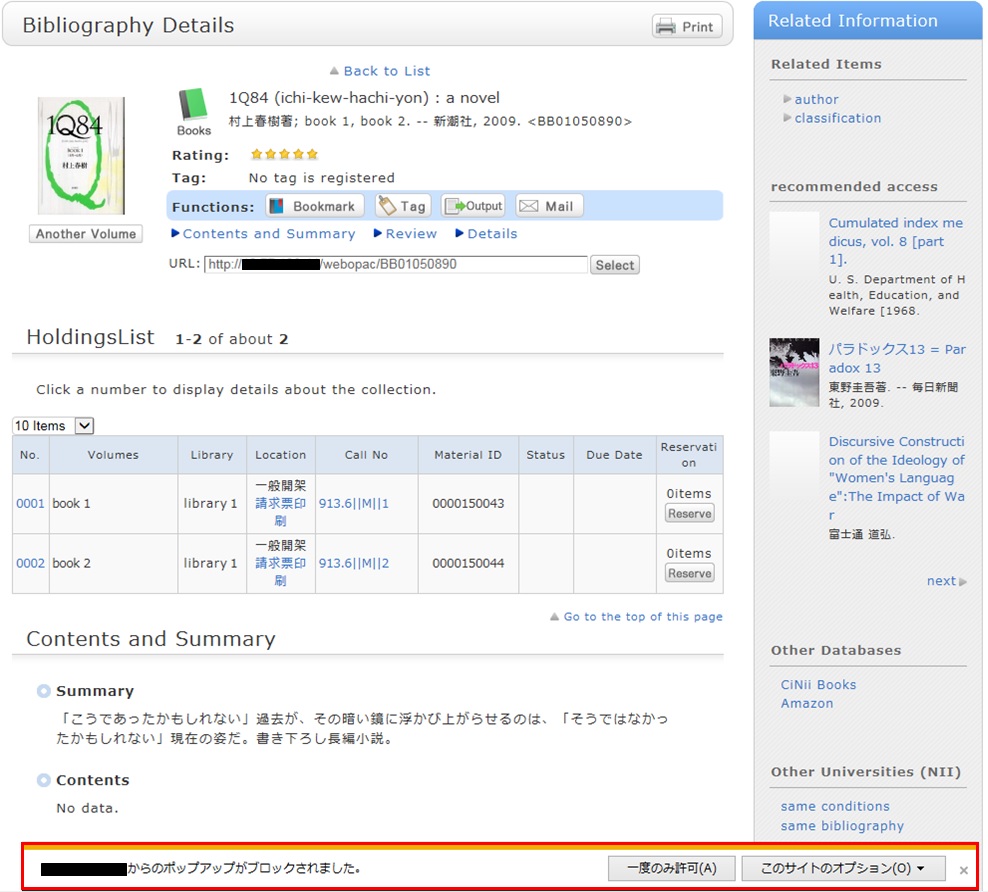
* The screenshot is from Internet Explorer 9. The pop-up blocker appears in different locations depending on your browser and version. For details, see the help of the respective browser.
The pop-up screen is used for all applications from OPAC, such as for a reservation, ILL, or new arrival alert. Therefore, enable pop-ups by using the following method. (The descriptions apply to Internet Explorer 9.)
- Temporarily allowing the pop-up blocker
Click [Allow once] on the pop-up blocker notification bar.
(Depending on the browser version, select "Temporarily Allow Pop-ups.")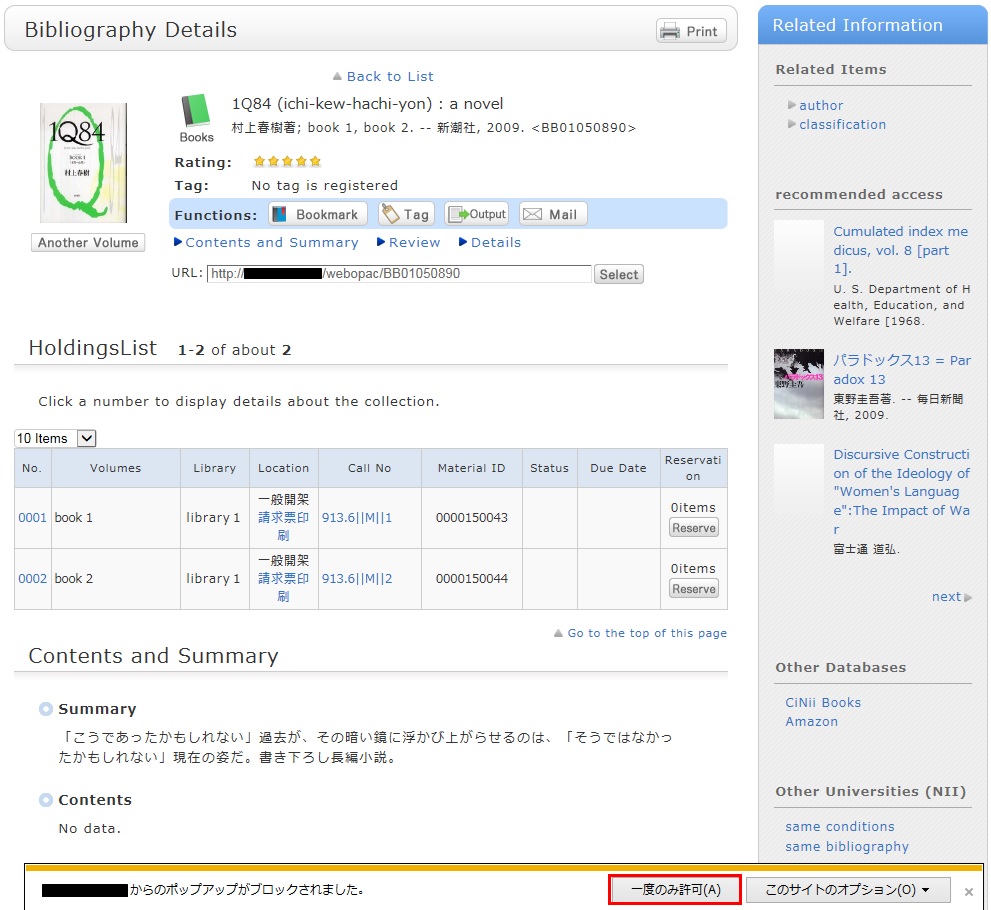
* However, with this method, if the browser is closed once, the pop-up blocker is enabled when the browser is started again. Consequently, the same work will need to be repeated to apply for a reservation or ILL in OPAC.
- Always allowing the pop-up blocker
Click "Always allow" from [Options for this site] on the pop-up blocker notification bar.
(Depending on the browser version, click the notification bar, and select "Always Allow Pop-ups from This Site.")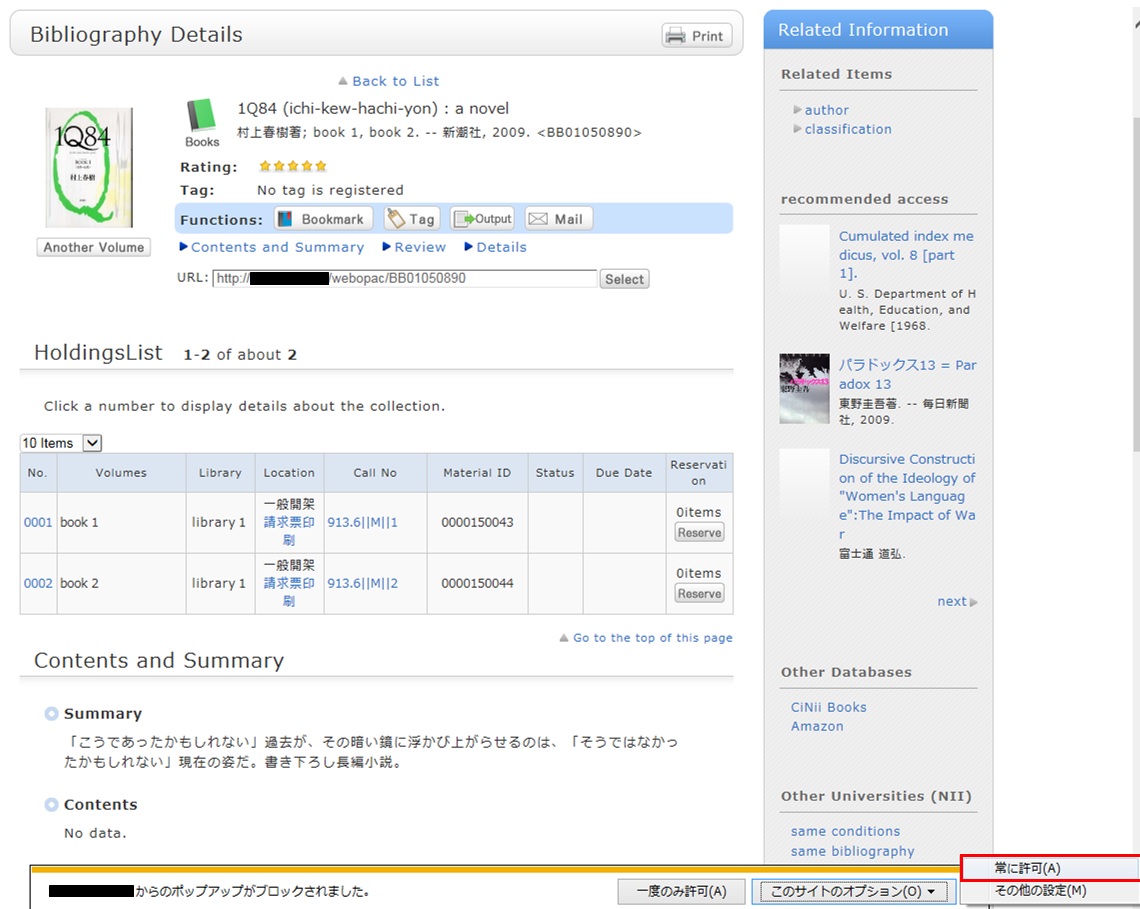
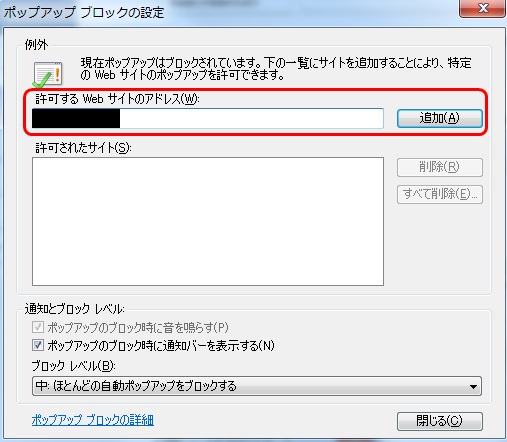
* Safari users are requested to go to Security in the browser settings menu to confirm that no check mark is entered in the "Block Pop-up Windows" check box.
* If you are a Google Chrome user, click here.
After enabling pop-ups as described above, repeat the procedure for your application from the beginning.
How do I search with an ISBN or ISSN (number)?

You can also perform a search from the advanced search screen by clicking the [Advanced Search] button on the [AIU Catalog] tab.
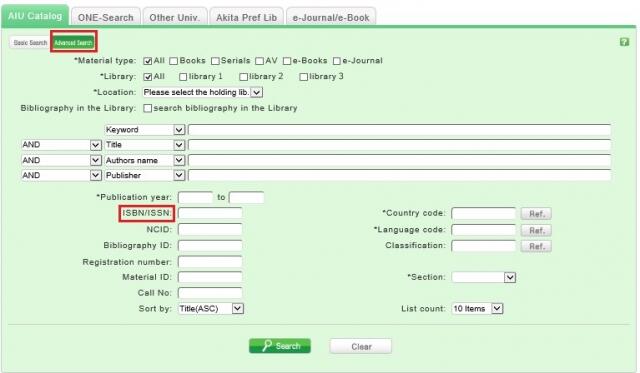
You can perform the search by filling in the ISBN/ISSN field.
ISBN (International Standard Book Number): This number identifies a book.
ISSN (International Standard Serial Number): This number identifies a serial.
What characters can I use with the [AIU Catalog] tab?
On the Japanese-language pages, you can use Kanji, Hiragana, Katakana, and alphanumeric characters. For alphanumeric characters, you can enter uppercase and lowercase characters. Single-byte and double-byte characters can both be entered.
Searches of Arabic script, Devanagari script, African languages, and Southeast Asian languages
Searches can use the original spelling (with characters as they appear in materials). Searches can also use keywords converted into Roman alphabet letters using the ALA-LC Romanization Tables of the U.S. Library of Congress. Some materials are registered in Roman alphabet letters only. An index is created for them. So if the search has no hits with the original spelling, convert the keywords into Roman alphabet letters, and perform the search again.
How do I search for materials when I don't remember the title?
If the search has an excessive number of hits, you can narrow it down with the [Classification] item from the [Refine Your Search] menu displayed on the left side of the search result list screen. In addition to using the classification, you can also narrow down your search by material type, author, publication year, subject, publisher, language, etc.
If the keyword search is unsuccessful, try using "Search by Classification" under the bar box of the [AIU Catalog] tab.
For example, suppose you are searching for statistics-related materials. From Search by Classification, you can narrow down the search to the materials in the following fields by selecting and performing the search with
"4: Natural science -> 41: Mathematics -> 417: Probabilities. Mathematical statistics."
What should I do if I want to use a combination of multiple search conditions (such as one including x or y using [AIU Catalog] tab)?
You can perform the following three searches by entering multiple conditions in a single search field or filling in multiple search fields (logical operation).
Logical AND search: Search for materials that satisfy two or more search values at the same time.Entry method: Connect all search values with " " (blank).Example: Search for materials containing both "Japan" and "America""Japan America"Logical OR search: Search for materials that satisfy any one of two or more search valuesEntry method: Connect all search values with "+" (plus sign).Example: Search for materials containing either "Japan" or "America""Japan+America"Logical NOT search: Search for materials that satisfy certain conditions and do not satisfy other corresponding conditionsEntry method: Connect all search values with "^" (caret).Example: Search for materials containing "Japan" but not "America""Japan^America"
Entering multiple search values in multiple search fields (enabled on the advanced search screen)
Logical AND search: Search for materials that satisfy two or more search values at the same timeEntry method: Enter search values in multiple fields, and select "AND" from the pull-down menu between the fields.Example: Search for materials containing "Japan" in the title and "Tokyo" in the author's nameTitle: Japan
Pull-down menu: ANDAuthor: TokyoLogical NOT search: Search for materials that satisfy certain items and do not satisfy other itemsEntry method: Enter search values in multiple fields, and select "NOT" from the pull-down menu between the fields.Example: Search for materials that contain "Japan" in the title and do not contain "Tokyo" in the author's nameTitle: Japan
Pull-down menu: NOTAuthor: Tokyo
Primary search items and secondary search items
The following search items are called primary search items. You can perform searches independently with their search values alone.
- Keyword
- Title
- Author
- Publisher
- Subject
- Tag
- Classification
- ISBN/ISSN
- NCID
- Bibliography ID
- Registration No.
- Material ID
- Call No.
The following search items are called secondary search items. You cannot perform a search with a secondary search item unless it is combined with at least one primary search item. The search screen displays * in front of the item names.
- Material type
- Publication year
- Country code
- Language code
- Material format
When I search for materials whose title starts with _____, or ends with _____.
There are two search methods: keyword search and literal search.
- The keyword search is a search of materials to find those containing the entered search value as a word (i.e., keyword).
The literal search is a search of materials to find those containing the entered search value as a simple character string (i.e., literal).
For the literal search, you can specify the following search methods.Search method Description Entry example Example of hit Exact match Retrieves the materials that have a complete match to the character string entered as a search condition. end end END End Prefix search Retrieves the materials that have a character string matching the prefix entered as a search condition. end* ending Left/right truncation search Retrieves the materials that have a character string matching the left/right truncation entered as a search condition. *end* weekends Suffix search Retrieves the materials that have a character string matching the suffix entered as a search condition. *end weekend - Searches for the following search items are normal keyword searches. To perform a literal search with the following keyword search items, add "#" to the beginning of the search values.
Keyword search item- Title
- Author
- Publisher
- Subject
- Keyword
- Searches for the following search items are normal literal searches.
Literal search item- Publication year
- Classification
- ISBN/ISSN
- Country code
- Language code
- NCID
- Registration No. (available only with prefix search)
- Material ID (available only with prefix search)
- Call No. (available only with prefix search)
By using the literal search, you can set the following search conditions for the details.Search method Entry example
(Item: Search value)Example of hit Searching for materials that have the keyword "Japan" in the title Title: Japan History of Japan
Tales of Old Japan
America and JapanSearching for materials whose title is "Japan" Title: #Japan Japan Searching for materials whose title ends with "Japan" Title: #*Japan America and Japan
A Rebirth of Japan
JapanSearching for materials published in the 1900s Publication year: 19* 1945
Opening Hours
| Sun | Mon | Tue | Wed | Thu | Fri | Sat |
29 | 30 | 31 | 1 | 2 | 3 | 4 |
5 | 6 | 7 | 8 | 9 | 10 | 11 |
12 | 13 | 14 | 15 | 16 | 17 | 18 |
19 | 20 | 21 | 22 | 23 | 24 | 25 |
26 | 27 | 28 | 29 | 30 | 1 | 2 |


Access from Cellular Phone