 国際教養大学公式サイト


FAQ
FAQ(English)
What kind of items can I use in searches from [AIU Catalog] on the advanced search screen?
You can perform searches with the following items on the advanced search screen.
- The △ symbol in the entry example represents one or more blank characters.
| Search item | Description | Entry example: Searched material |
| Material type | Narrows down the type of material that is the search target. | Check the check box of the material type, such as All, Books, or Serials. |
| Library | Holding Library | Library only |
| Keyword | Searches for the items in all of the titles, authors' names, and subjects. The number of hits may be very large. | Example 1: Japan△Tanaka△politics |
| Materials whose title or author's name or subject contain "Japan," "Tanaka," and "politics" | ||
| Example 2: Japan+politics | ||
| Materials whose title or author's name or subject contain "Japan" or "politics" | ||
| Example 3: Japan^politics | ||
| Materials whose title or author's name or subject contain "Japan" but not "politics" | ||
| Example 4: #politics of Japan | ||
| Materials with "politics of Japan" in any of the title, author's name, and subject | ||
| Example 5 #*politics of Japan | ||
| Materials with "politics of Japan" as the ending of any of the title, author's name, or subject | ||
| Title | Searches for a title, serial name, series name, etc. | Example 1: politics of Japan |
| Materials whose title contains "Japan," politics," and "of" | ||
| Example 2: Japan△politics | ||
| Materials whose title contains "Japan" and "politics" | ||
| Example 3: #politics of Japan | ||
| Materials whose title is "politics of Japan" | ||
| Example 4: #*politics of Japan* | ||
| Materials with "politics of Japan" in the title | ||
| Author | Searches for an author, publisher, translator, original author, etc. | Example 1: Fuji Hanako |
| Author "Fuji Hanako" (No space possible between the family name and given name) | ||
| Example 2: Fuji△Hanako or Fuji,Hanako | ||
| Works by authors whose name contains "Fuji" and "Hanako" | ||
| Example 3: Fuji | ||
| Works by authors whose family name or given name contains "Fuji" | ||
| Example 4: Fuji△Hanako (Katakana in Japanese) | ||
| Author "Fuji△Hanako" (Search possible even when read in Hiragana or Katakana) | ||
| Example 5: Margaret△Mitchell | ||
| Author Margaret Mitchell | ||
| Example 6: #Fuji* | ||
| Works of authors whose family name begins with "Fuji" | ||
| Publisher | Searches for a publisher or publishing house. | Example 1: Fujitsu Press |
| Materials published by "Fujitsu Press" | ||
| Example 2: Fuji△Publishing | ||
| Materials published by a publisher whose name contains "Fuji" and "Publishing" | ||
| Example 3: Fujitsu Press | ||
| Materials published by "Fujitsu Press" (without Inc., Ltd., or other such words specified) | ||
| Subject | Performs a search with the specified word expressing the subject of the material. | Example 1: library information |
| Materials whose subject is "library information" | ||
| Example 2: toshokan△joho (Japanese) | ||
| Materials whose subject contains "toshokan" and "joho" | ||
| Tag [Local] | Searches for a registered tag. | Example 1:introduction to mathematics |
| Materials that contain "introduction to mathematics" in a registered tag | ||
| Example 2:Book changed my life | ||
| Materials that contain "Book changed my life" in a registered tag | ||
| Publication year (Western calendar) | Performs a search with the specified publication year. | Example 1: 2006 |
| Materials published in 2006 (Specify the year with four digits.) | ||
| Example 2: 199* | ||
| Materials published in the 1990s | ||
| Example 3: 1990-2000 | ||
| Materials published between 1990 and 2000 (For each material, specify the respective year with four digits.) | ||
| ISBN/ISSN | Performs a search with the specified international standard book number (ISBN) or international standard serial number. | Example 1: 4881357611 |
| Book material whose ISBN is 4-88135-761-1 (Enter it without “-” (hyphen).) | ||
| Example 2: 13407287 | ||
| Successively issued materials whose ISSN is 1340-6297 (Enter it without “-” (hyphen).) | ||
| NCID | Performs a search with the specified bibliography code ID assigned to an NII bibliography record. | Example: AN10202348 |
| Material whose NII bibliography record ID is N10202348. | ||
| Bibliography ID | Performs a search with the specified bibliography code ID assigned to a bibliography record. | Example: SB00078405 |
| Material whose bibliography record ID is SB00078405 | ||
| Registration No. | Performs a search with the specified registration number, which is the administrative management number assigned to each material. | Example: 123456789 |
| [Local] | Material whose registration number is 123456789 | |
| Material ID | Performs a search with the specified material ID for borrowing and returning materials. | Example: 0123456789 |
| [Local] | Material whose material ID is 0123456789 | |
| Call No. | Performs a search with the specified call number. | Example: 10-10||ho||10||4 |
| [Local] | Materials whose call number is 10-10||ho||10||4 (Differentiate uppercase alphabetic characters from lowercase ones.) | |
| Country code | Performs a search with the specified publication country code. To perform the search, select the [Browse] button on the right side of the input field, check the Country check box, and either specify the code with the [OK] button or enter the code directly. | Example: gw Materials published in Germany (You can use both lowercase and uppercase characters.) |
| Language code | Performs a search with the specified title or language code of the text. To perform the search, select the [Browse] button on the right side of the input field, check the By language check box, and either specify the code with the [OK] button or enter the code directly. | Example: epo Materials written in Esperanto |
| Classification | Performs a search with the specified classification characteristic expressing the subject of the material. | Example 1: 311 |
| Material whose classification characteristic is 311 | ||
| Example 2: 31* | ||
| Material whose subject begins with a classification characteristic of 31 |
Can I use only Roman characters to search Japanese language materials when using [AIU Catalog]?
By placing a "$" symbol in front of Roman characters used for search values, you can convert the Roman characters into Katakana characters to perform a search.
- Writing in the official Kana romanization system and the Hepburn system is supported.
- The Roman alphabet doesn't correspond to the long vowel character. For example, please enter "$kiwado" not "$kiwado" when you want to get the same result in the "キーワード."
- _ means a blank.
| Entry example | Search results | Example of hit |
|---|---|---|
| $genji | It will be shown the same search results in the keywords "ゲンジ" (genji in katakana). | 源氏世界の文学 源氏物語の人と心 源氏物語の世界 |
| $syamisen+$wahuu | It will be shown the same search results in the keywords "シャミセン+ワフウ"(syamisen+wahuu in katanaka). | 玉菊とその三味線 和風 和風と洋式 |
| $nihon_$amerika | It will be shown the same search results in the keywords "ニホン_アメリカ"(nihon_amerika in katanaka). | 日米関係キーワード アメリカの心・日本の心 日米同盟 |
I found a book with [AIU Catalog], but I don't know its location on the bookshelves.
An image of the call number label appears when the cursor is placed over this link.
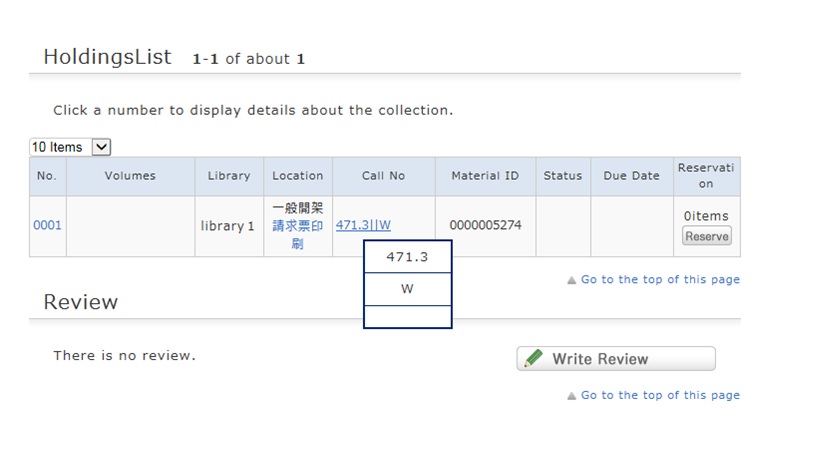
This image corresponds to the label on the book.
The library bookshelves are arranged in order of call number.
From the signs on premises and this number, find the bookshelf.
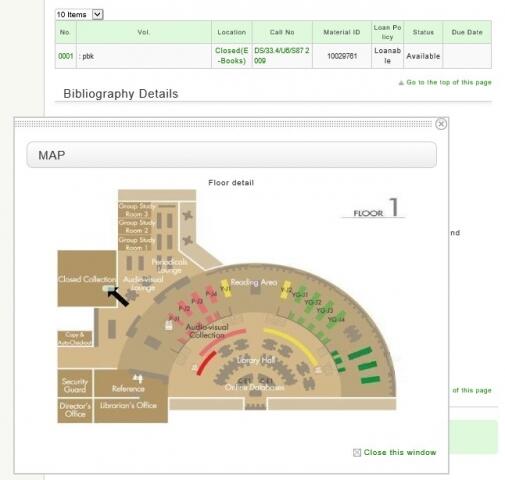
Location of some books are shown on the library map by clicking "Location."
What should I do if the materials found with OPAC are already loaned out?
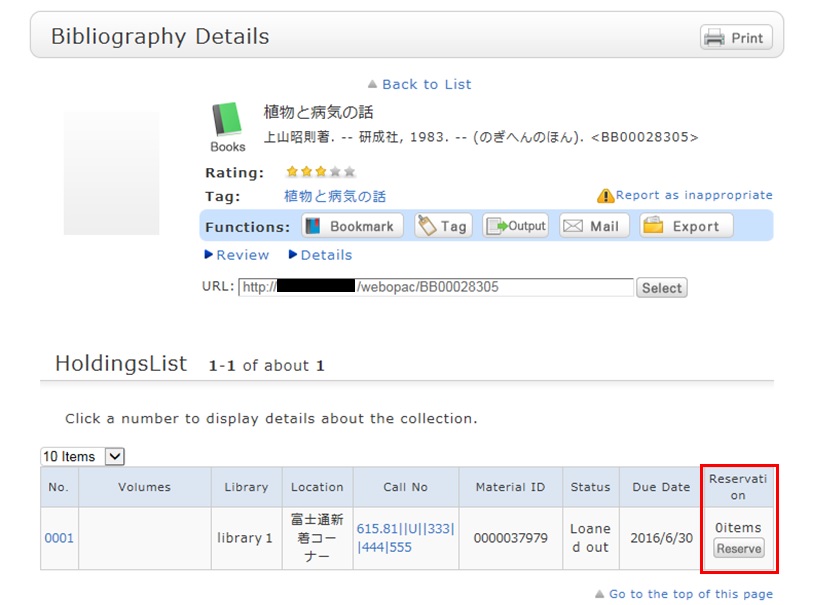
1. Click the [Reserve] button in "Holdings List" on the bibliography details screen.
2. Select the request conditions, and click [Select] on the Select Request Conditions screen.
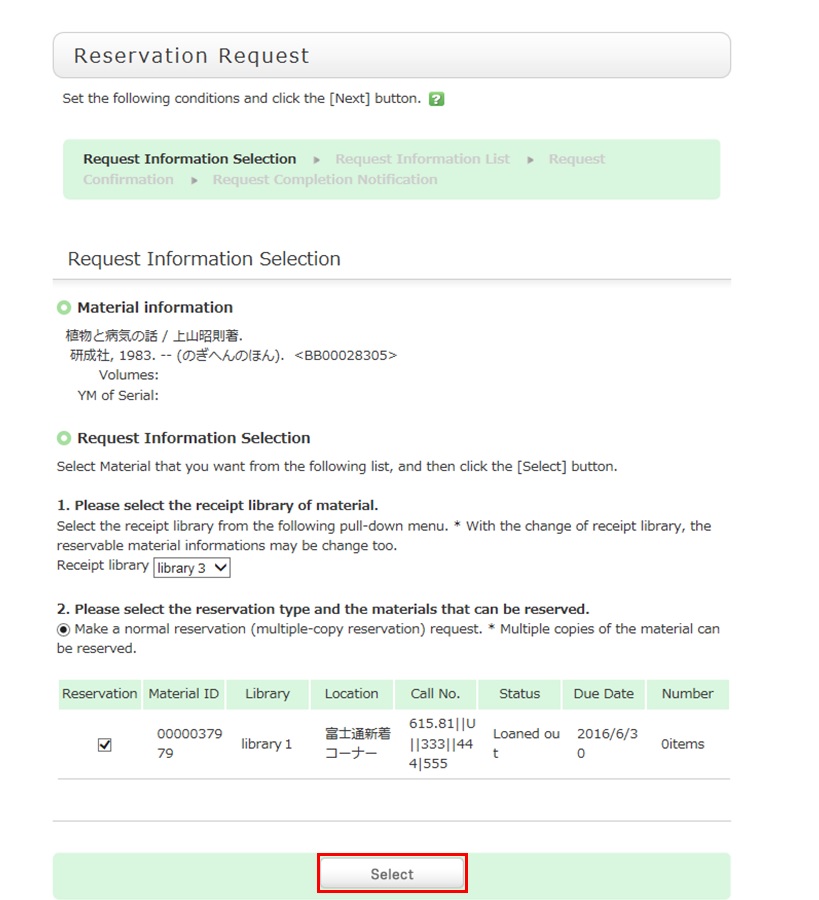
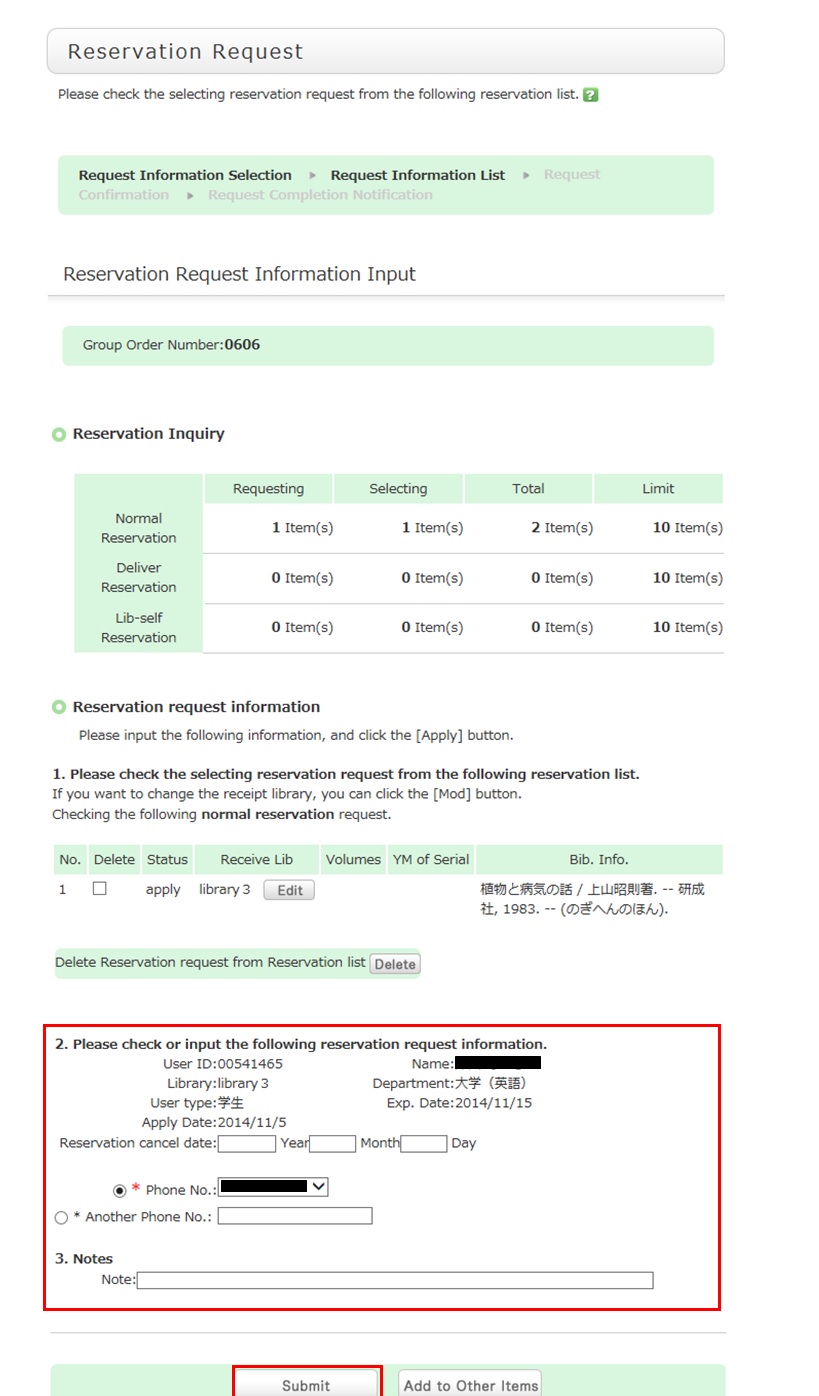
3. Confirm the material information and reservation client information on the request information entry screen. Then, enter (confirm) reservation details. Lastly, click the [Submit] button.
- Reservation cancel date: The reservation is canceled when the entered date has passed.
- E-mail: The library uses it to inform you when your reserved materials are available for check-out. To be contacted at a different e-mail address, fill in the "Change E-mail" field.
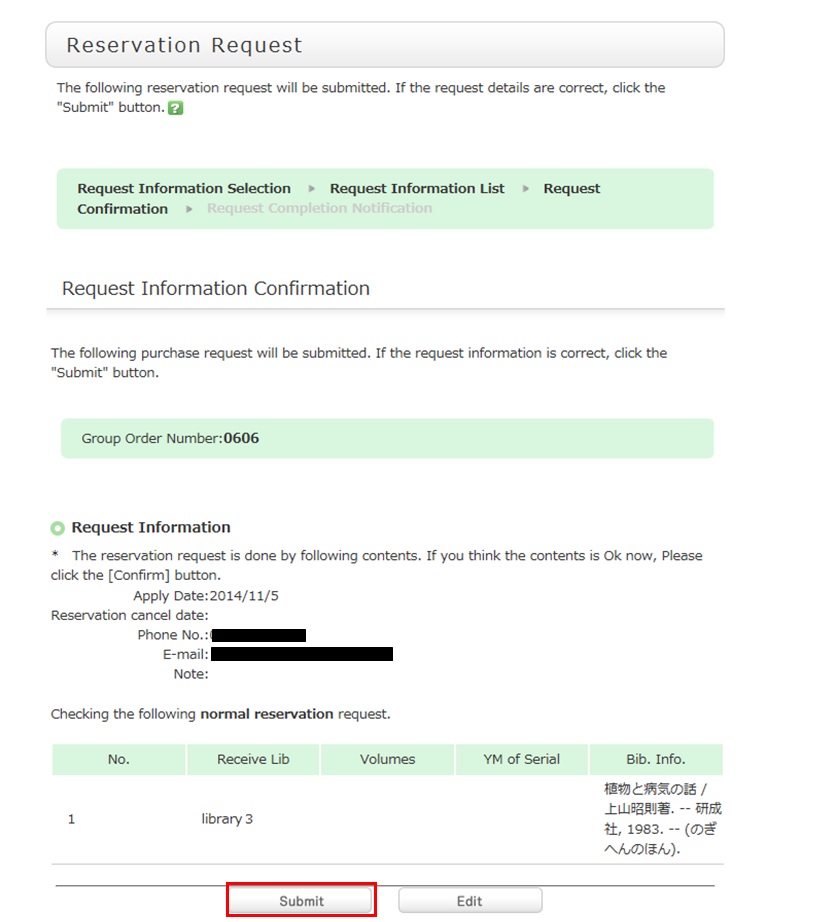
4. Confirm your reservation request details on the request confirmation screen, and then click the [Confirm] button.
5. The reservation is complete when the request completion notification screen appears.
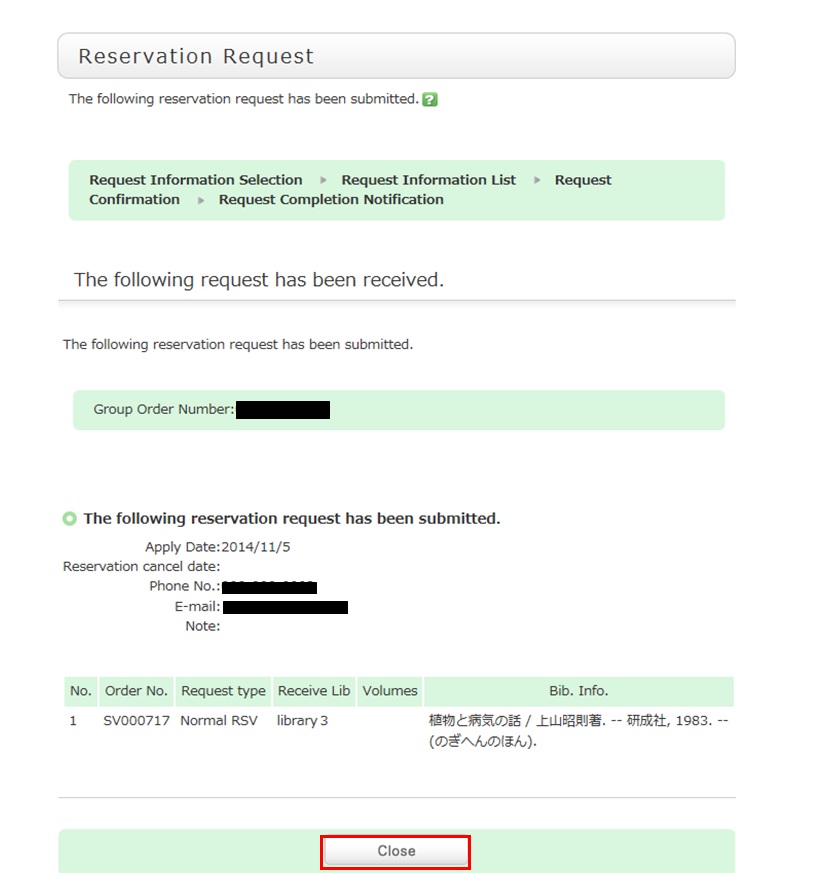
* Reserved materials are on hold for a period of time.
If you do not borrow the materials within this period, the reservation is canceled. So when the library contacts you about the arrival of your reserved materials, visit the library as soon as possible and complete the procedure for borrowing.
What should I do if I want to use materials from a different university library?
Articles cannot be searched. If you want a copy of articles, perform the search with the title of the journalfrom the [Other Uni.] tab. Some fees are charged for the service.
How do I make an ILL borrowing request?
1. First, enter information on the materials you are looking for.
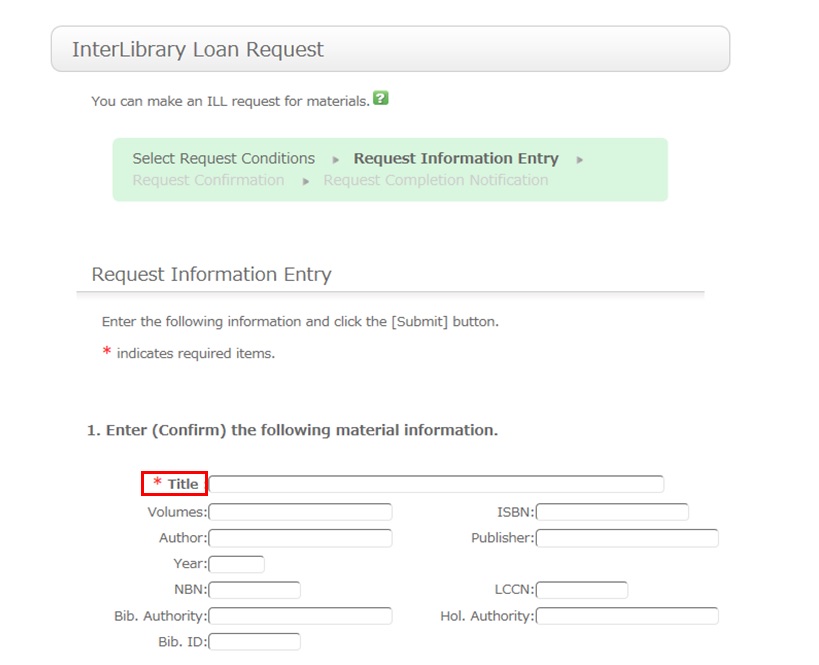
To be certain about obtaining those materials, enter as much detailed information as you can.
In particular, if you found them in a database or other such system, write the name of this system in the bibliography authority.
* Bold characters indicate required fields.
2. Next, enter your own information in the client information fields.
Note that if your contact information has an error, the materials cannot be promptly handed to you.
So be sure to enter the correct contact information for getting in touch with you.
3. Next, enter information about your request, information about the payment method, and remarks.
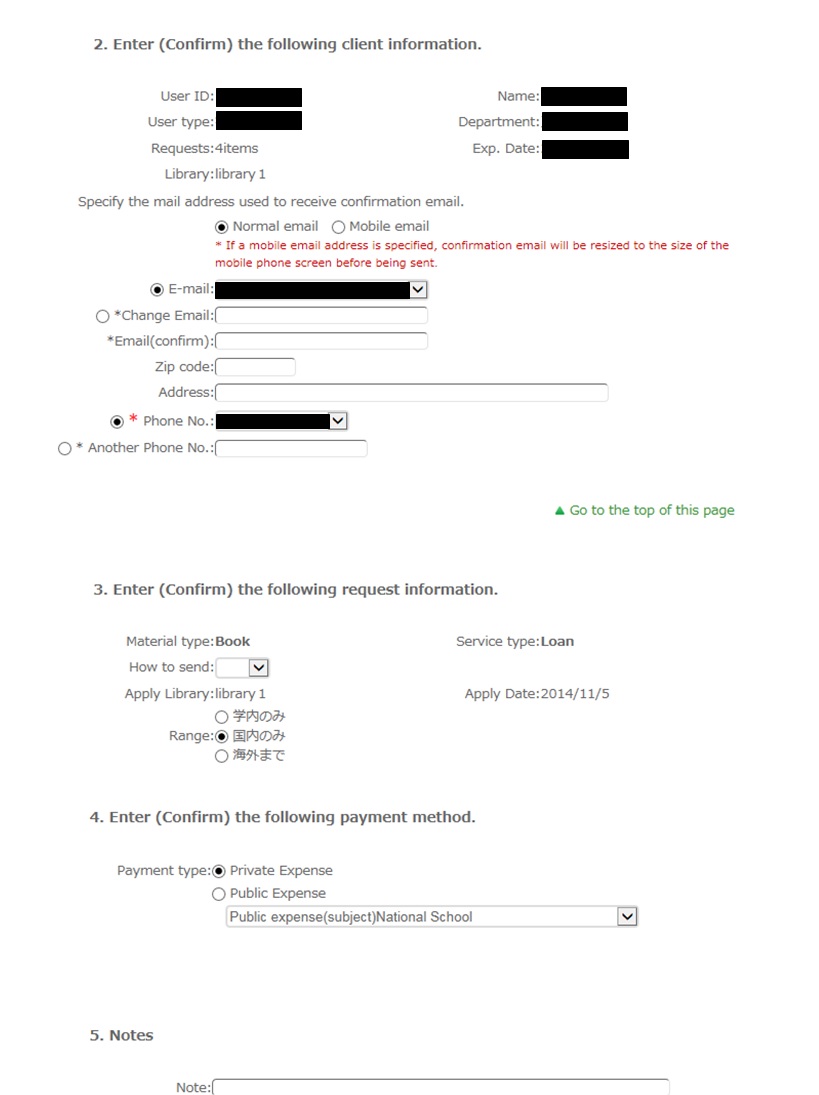
For the payment method, you can select private expense or public expense.
To apply for payment at public expense, you must have a public expense budget.
Once you have entered the above details, click the [Submit] button, and confirm the details on the confirmation screen.
When there are no problems, click the [OK] button to complete the procedure.
How do I cancel a submitted copy request (ILL copy request)?
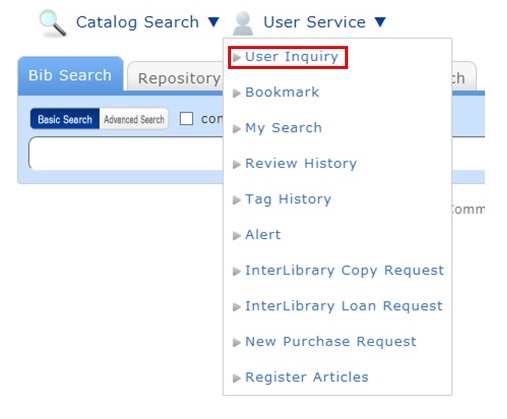
You can confirm your loaned out materials and various requested materials on the user inquiry screen.
Select "Go to Copy Request List" in the information relating to copy requests, among those requests.
As a result, you can check a list of the copy requests that are current requests.
If you want to cancel the request for a material in this list, place a check mark beside the material and click the [Cancel Request] button.
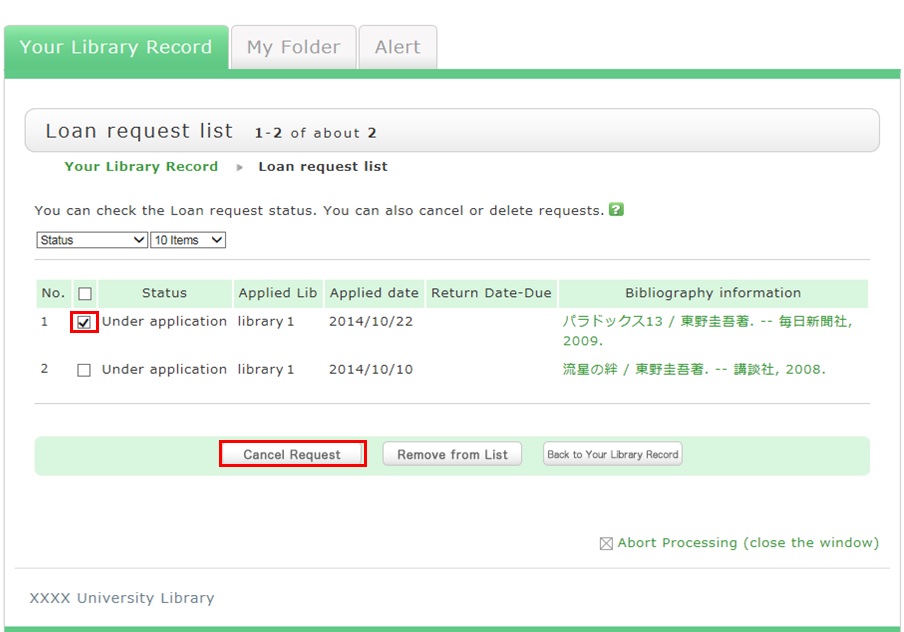
How do I cancel a submitted borrowing request (ILL borrowing request)?
You can confirm your loaned out materials and various requested materials on the user inquiry screen.
Select "Go to ILL Request List" in the information relating to borrowing requests, among those requests.
As a result, you can check a list of the borrowing requests that are current requests.
If you want cancel the request for a material in this list, place a check mark beside the material and click the [Cancel Request] button.
What kind of user services are available?
カテゴリ:
5.1. Personal Services
The user services offered are broadly divided into the following three functions.
1. My Library Record
Use this function to browse your current borrowing status, apply for an extension of the borrowing period, and change data such as personal information.
2. My Folder
This function is used to save search conditions, save search results, and browse the history.
3. Alert
This function notifies you of the arrival of new books and serials at the library.
I can't log in to Library website.
カテゴリ:
5.1. Personal Services
Opening Hours
| 日 | 月 | 火 | 水 | 木 | 金 | 土 |
29 | 30 | 31 | 1 | 2 | 3 | 4 |
5 | 6 | 7 | 8 | 9 | 10 | 11 |
12 | 13 | 14 | 15 | 16 | 17 | 18 |
19 | 20 | 21 | 22 | 23 | 24 | 25 |
26 | 27 | 28 | 29 | 30 | 1 | 2 |


Access from Cellular Phone