 AIU Home


FAQ
FAQ(English)
What can I do from Your Library Record in the Library website?
Category:
5.1. Personal Services
Renewal and export to the book management tool are both possible from the list. To do so, enter a check mark in each appropriate check box.
Click a bookmark title to check the status in detail.
Reservation
Canceling a reservation, deleting one from the list, and export to the book management tool are all possible from the list. To do so, enter a check mark in each appropriate check box.
Click a bookmark title to check the reservation status in detail.
Copy request
Canceling a copy request, deleting one from the list, and export to the book management tool are all possible from the list. To do so, enter a check mark in each appropriate check box.
Click a bookmark title to check the status in detail.
Borrowing request
Canceling a borrowing request, deleting one from the list, and export to the book management tool are all possible from the list. To do so, enter a check mark in each appropriate check box.
Click a bookmark title to check the request status in detail.
Purchase request
Deleting a request from the list and export to the book management tool are both possible from the list. To do so, enter a check mark in each appropriate check box.
Click a bookmark title to check the purchase status in detail.
Borrowing history
Deleting an item from the list and export to the book management tool are both possible from the list. To do so, enter a check mark in each appropriate check box.
Click a bookmark title to check the borrowing history in detail.
What kind of functions does My Folder have?
Category:
5.1. Personal Services
1. Bookmark
This function creates a list of materials on the Web. You can register the books you have already read or plan to read.
The list can also be used as a list for outputting data to EndNote and RefWorks.
2. My Search
This function saves search conditions. So you can perform your next and subsequent searches using the same search conditions.
Can I have a list of materials kept for me to check at a later date?
Category:
5.1. Personal Services
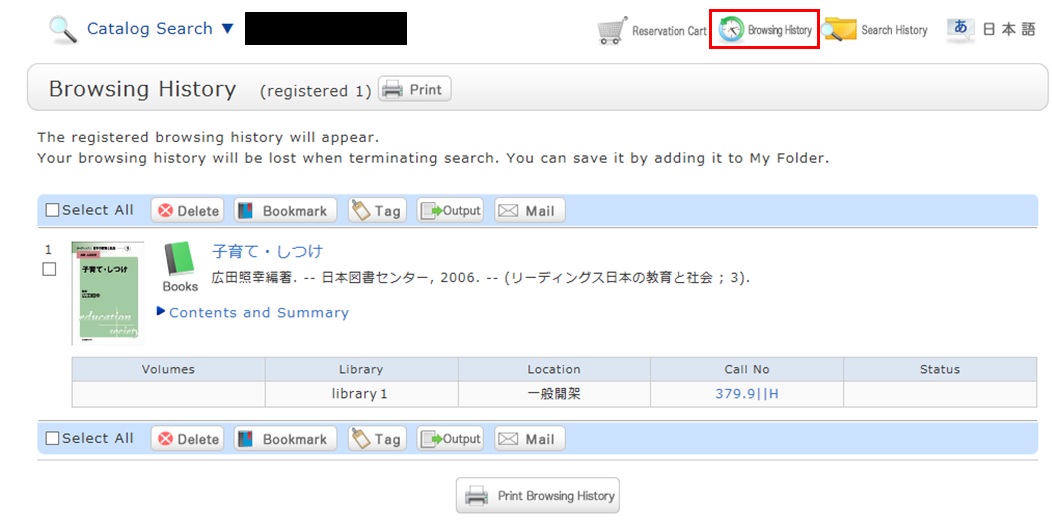
* The screenshot is the screen displayed after "Browsing History" is clicked.
To confirm content at a later date, register it in a bookmark.
Register it in the bookmark from the search result list or the bibliography details screen.
To register a material on the list screen, enter a check mark in the check box of the material, and click the [Bookmark] button.
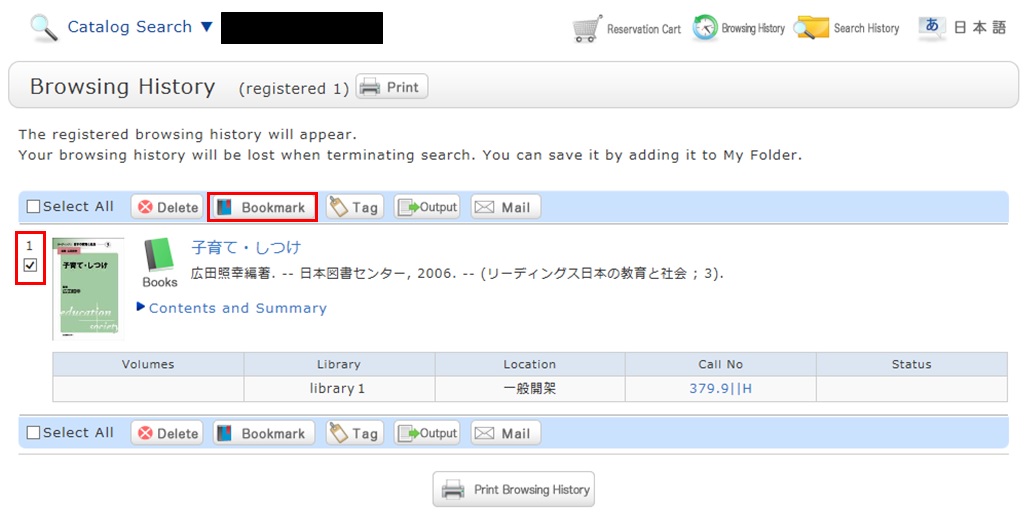
You can check the registered contents from the bookmarks.
I want to save search conditions to use in a search at a later date. Can this be done?
Category:
5.1. Personal Services
You can check the search history by clicking the [Search History] button at the top of the screen.
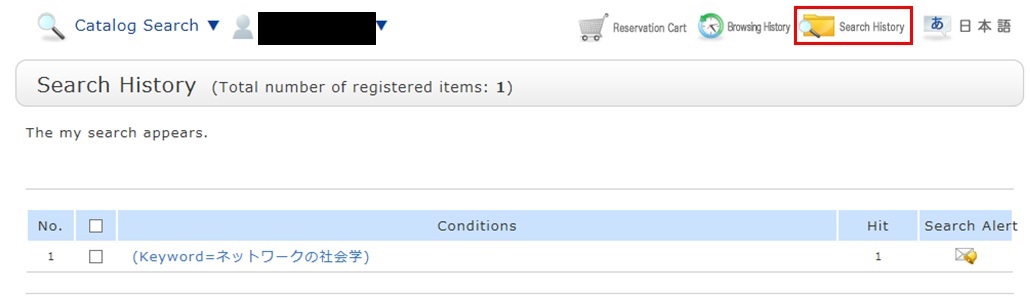
* The screenshot is the screen displayed when "Search History" is clicked.
To save search conditions until a later date by registering them from the search history browsing screen, enter a check mark in the check box of each search condition, and click the [Add to Favorites] button.
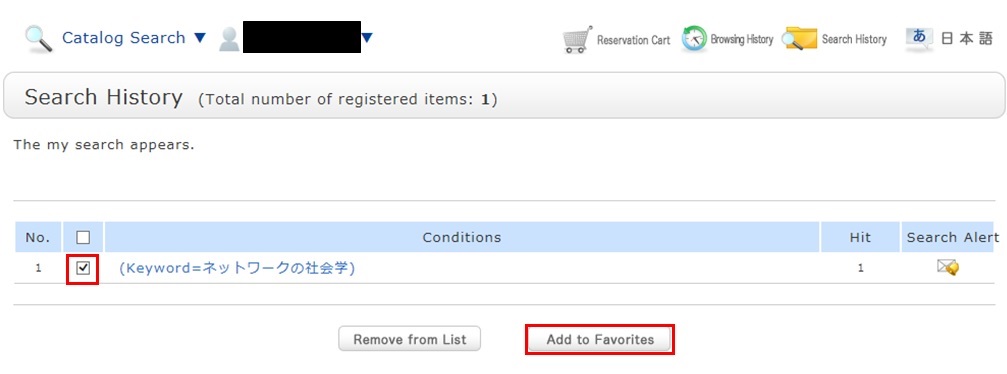
You can check the registered contents from My Search in OPAC.
I want to be notified when the latest issue of the serial _____ arrives. Is this possible?
Category:
5.1. Personal Services
Apply for the alert service from the bibliography details screen.
This service covers serials being received on an ongoing basis.
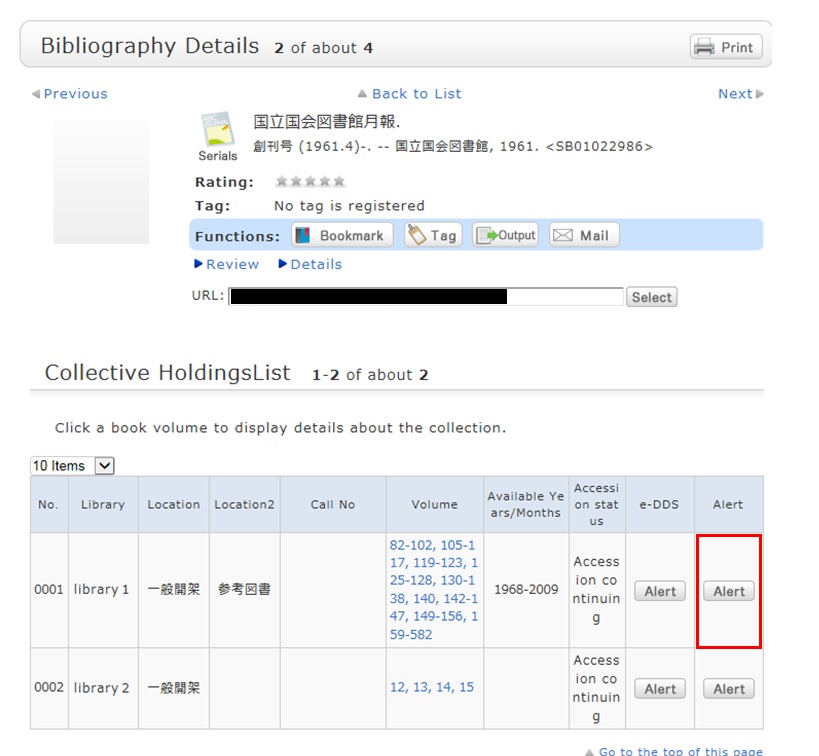
Once you complete your application, the registered conditions appear on the alert list screen.
You can stop the sending of notifications and change the sending frequency on the alert list screen.
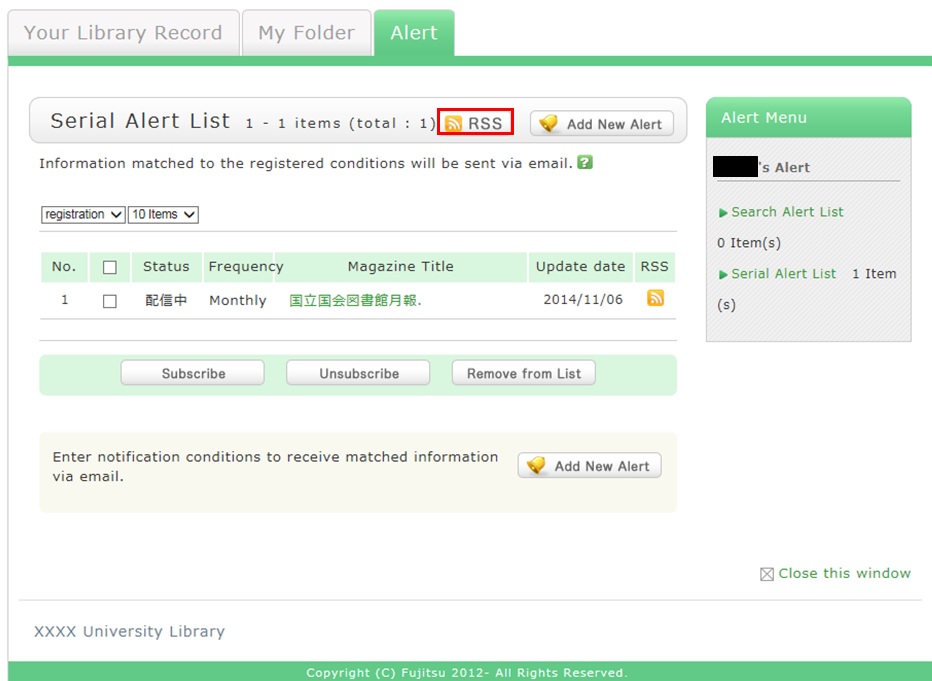
Also, you can register an RSS reader from the [RSS] button.
Once you have registered the RSS reader, you can check for any new arrivals of the relevant materials, even without checking OPAC.
I want to be notified of any books related to _____ received by the library. Is this possible?
Category:
5.1. Personal Services
when the library receives any matching material.
After a search with [AIU Catalog], you can register the search conditions by clicking "Add Search Alert."
You can also register search conditions from Alert.
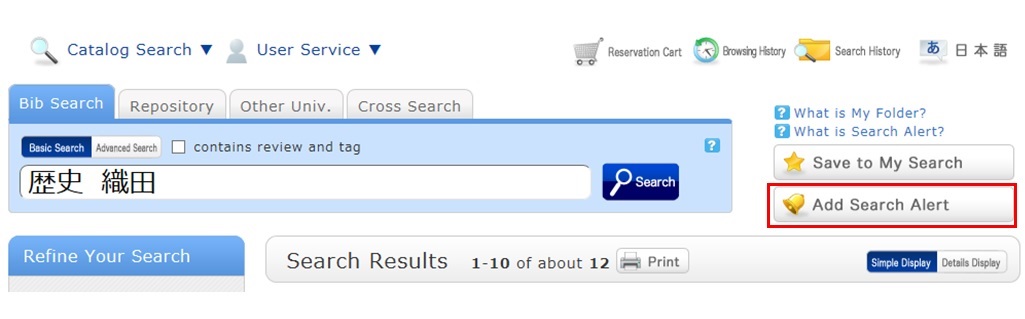
The process of registration displays the Alert list screen.
From there, you can check the list being sent and change the sending frequency.
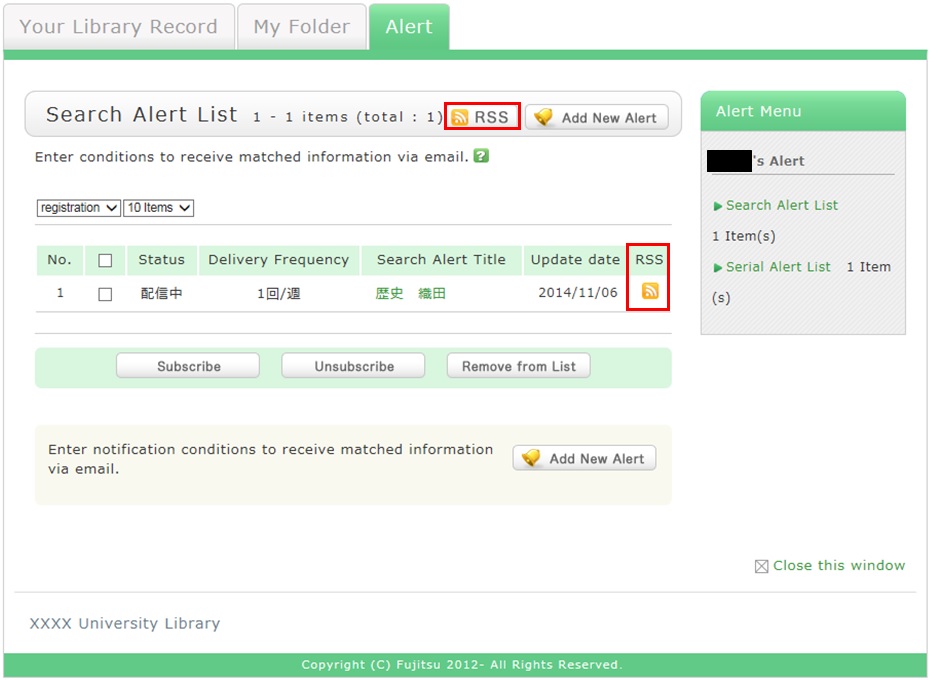
You can register an RSS reader from the [RSS] button.
Once you have registered the RSS reader, you can check for any new arrivals of the relevant materials,
even without checking OPAC.
★I have a book I want to sell.
Category:
4.1. Requests to the Library
★I want to express a question, opinion, or request to the library.
Category:
4.1. Requests to the Library
What is OPAC?
Category:
9. Other
OPAC is the abbreviation for Online Public Access Catalog.
Nakajima Library website offers functions of OPAC.
★What do I do when I don't find the materials I'm looking for on the [Bib Search] tab? (Part 1)
- check the Kanji and spelling of keywords to see whether they are correct.
- Are searching by "Article title" or "Article author"? Try searching by serial title.
When you want to search by "Article title" or "Article author," try searching from the [ONE-Search] tab. In such cases, you may also be able to read the text of electronic journals from a personal computer. - If you still do not find the materials you are looking for, try searching from the [Other Univ.] tab.
If you can confirm that the library of another institution possesses the materials you are looking for, you may be able to get them from the library.
Opening Hours
| Sun | Mon | Tue | Wed | Thu | Fri | Sat |
29 | 30 | 31 | 1 | 2 | 3 | 4 |
5 | 6 | 7 | 8 | 9 | 10 | 11 |
12 | 13 | 14 | 15 | 16 | 17 | 18 |
19 | 20 | 21 | 22 | 23 | 24 | 25 |
26 | 27 | 28 | 29 | 30 | 1 | 2 |


Access from Cellular Phone