 AIU Home


FAQ
FAQ(English)
Library Website is not operating normally. (Recommended browsers)
Category:
0. Getting Started
Recommended browsers
We recommend using the latest versions of the following browsers so that Library website is easy to use:
Windows
- Internet Explorer
- Mozilla Firefox
- Google Chrome
Macintosh
- Safari
Notice
These browsers do not operate normally with the following settings. Change these settings when applicable.
- Cookies setting: Disable
- Compatibility View setting: Enable (Internet Explorer)
- Referer setting: Disable
* If the Referer setting in your browser is Disable, the browser does not operate normally. After enabling Referer, access OPAC again.
* It is possible for the content to be displayed as follows when the compatibility view is turned on with Internet Explorer8.
- The column width of specific items in the bibliography details holdings list narrows drastically.
- A gray line borders each bibliography in the search result list.
★What can I find with OPAC?
Category:
0. Getting Started
- Bib Search: Books and serials in our collection
- Article Search: Articles, etc. accessible domestically
- Other Univ.: Books, serials, etc. in the possession of university libraries, etc. nationwide
- Cross Search: Materials in the possession of national universities, the National Diet Library, bookstores, etc.
Switch to and use the tab appropriate to the search target and materials.
For details, see the respective tab.
★I would like an explanation of matters such as how to use each database, how to find materials, and how to use the library effectively.
Category:
0. Getting Started
I'm looking for a material titled _____. How should I begin?
Category:
0. Getting Started
[AIU Catalog] tab allows you to search books in print.
If you do not find the book with [AIU Catalog] tab, you may get it from the Akita Prefectural Library for a fee of charge.
You can search the book with [Akita Pref Lib] tab.
If you still do not find the book, you can search and borrow from other universities with a fee. You can search from the [Other Univ.] tab.
2. To search books in print or digital
[ONE-Search] tab allows you to search books print and digital.
3. To search a journal in print
[AIU Catalog] tab allows you to search journals in print.
4. To search a journal in print or digital
[ONE-Search] tab allows you to search journals both in print and digital. [ONE-Search] tab also allows you to search journal articles. After the first search, use the filter on the left side of the screen to refine your search.
5. To search a journal articl
[ONE-Search] tab allows you to search journal articles. After the first search, use the filter on the left side of the screen to refine your search. To perfom a search within a specific search site, use Advanced Search.
The pop-up blocker appears when I reserve or copy materials or apply for an inter-library loan.
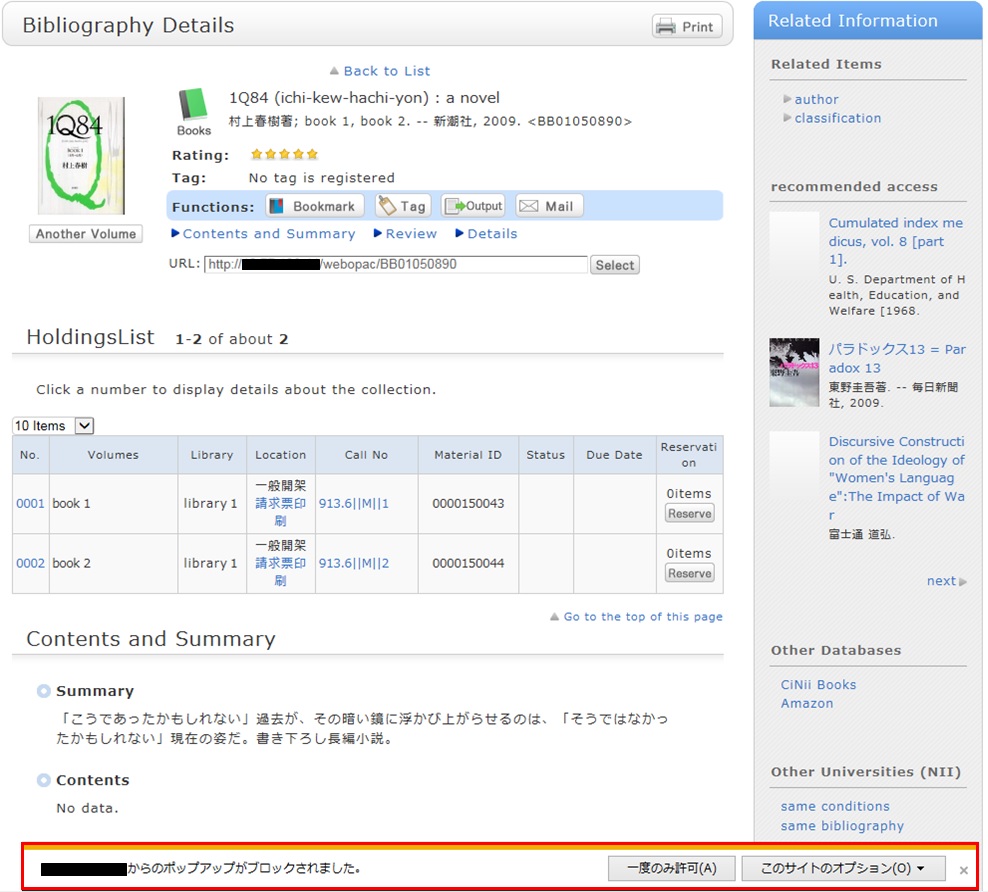
* The screenshot is from Internet Explorer 9. The pop-up blocker appears in different locations depending on your browser and version. For details, see the help of the respective browser.
The pop-up screen is used for all applications from OPAC, such as for a reservation, ILL, or new arrival alert. Therefore, enable pop-ups by using the following method. (The descriptions apply to Internet Explorer 9.)
- Temporarily allowing the pop-up blocker
Click [Allow once] on the pop-up blocker notification bar.
(Depending on the browser version, select "Temporarily Allow Pop-ups.")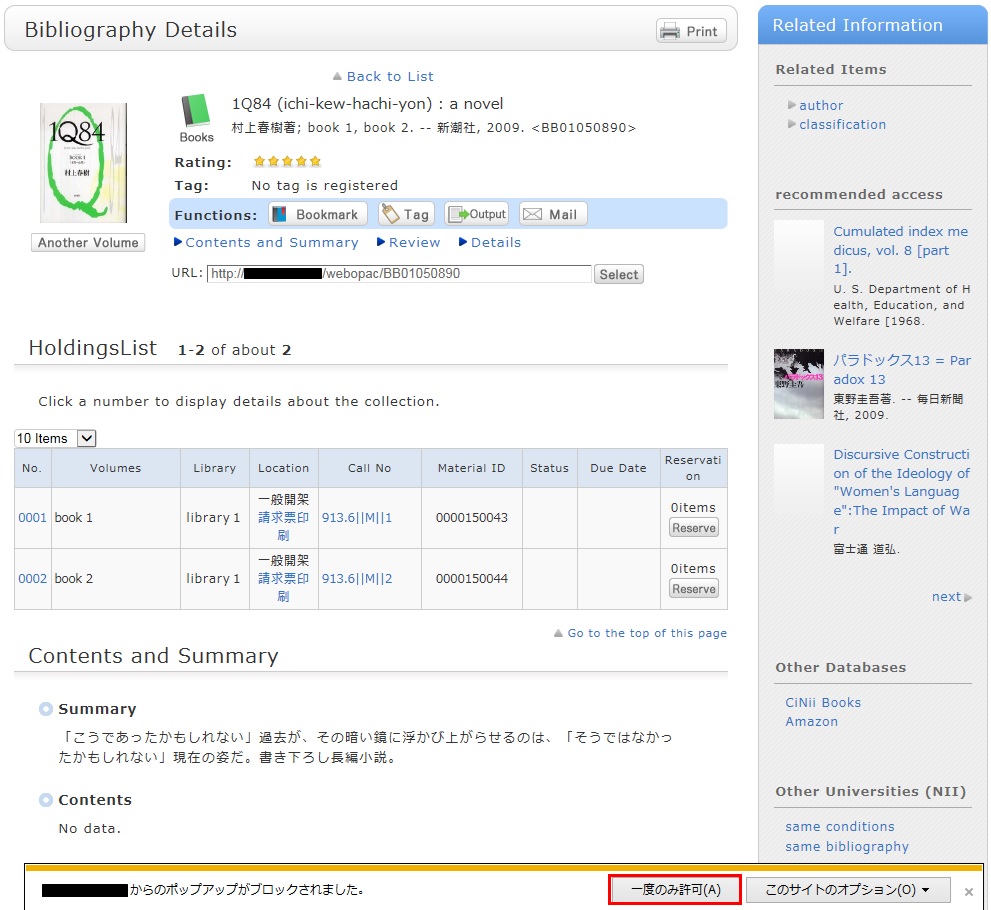
* However, with this method, if the browser is closed once, the pop-up blocker is enabled when the browser is started again. Consequently, the same work will need to be repeated to apply for a reservation or ILL in OPAC.
- Always allowing the pop-up blocker
Click "Always allow" from [Options for this site] on the pop-up blocker notification bar.
(Depending on the browser version, click the notification bar, and select "Always Allow Pop-ups from This Site.")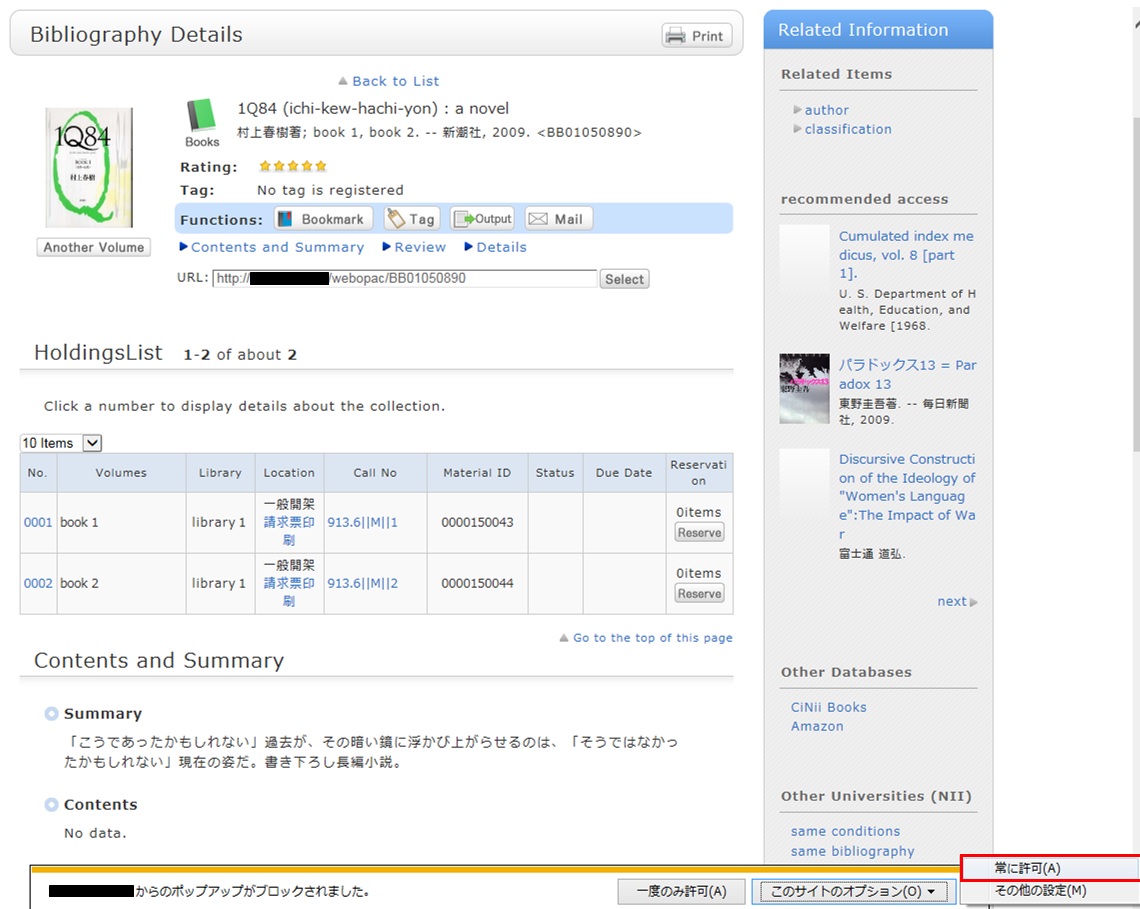
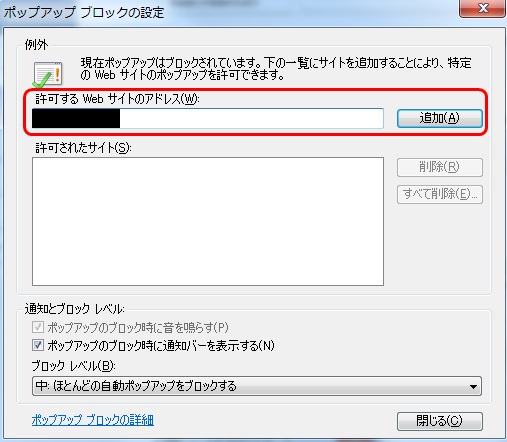
* Safari users are requested to go to Security in the browser settings menu to confirm that no check mark is entered in the "Block Pop-up Windows" check box.
* If you are a Google Chrome user, click here.
After enabling pop-ups as described above, repeat the procedure for your application from the beginning.
How do I search with an ISBN or ISSN (number)?

You can also perform a search from the advanced search screen by clicking the [Advanced Search] button on the [AIU Catalog] tab.
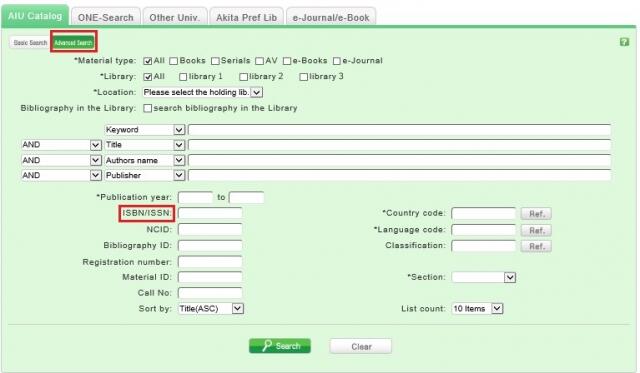
You can perform the search by filling in the ISBN/ISSN field.
ISBN (International Standard Book Number): This number identifies a book.
ISSN (International Standard Serial Number): This number identifies a serial.
What characters can I use with the [AIU Catalog] tab?
On the Japanese-language pages, you can use Kanji, Hiragana, Katakana, and alphanumeric characters. For alphanumeric characters, you can enter uppercase and lowercase characters. Single-byte and double-byte characters can both be entered.
Searches of Arabic script, Devanagari script, African languages, and Southeast Asian languages
Searches can use the original spelling (with characters as they appear in materials). Searches can also use keywords converted into Roman alphabet letters using the ALA-LC Romanization Tables of the U.S. Library of Congress. Some materials are registered in Roman alphabet letters only. An index is created for them. So if the search has no hits with the original spelling, convert the keywords into Roman alphabet letters, and perform the search again.
How do I search for materials when I don't remember the title?
If the search has an excessive number of hits, you can narrow it down with the [Classification] item from the [Refine Your Search] menu displayed on the left side of the search result list screen. In addition to using the classification, you can also narrow down your search by material type, author, publication year, subject, publisher, language, etc.
If the keyword search is unsuccessful, try using "Search by Classification" under the bar box of the [AIU Catalog] tab.
For example, suppose you are searching for statistics-related materials. From Search by Classification, you can narrow down the search to the materials in the following fields by selecting and performing the search with
"4: Natural science -> 41: Mathematics -> 417: Probabilities. Mathematical statistics."
What should I do if I want to use a combination of multiple search conditions (such as one including x or y using [AIU Catalog] tab)?
You can perform the following three searches by entering multiple conditions in a single search field or filling in multiple search fields (logical operation).
Logical AND search: Search for materials that satisfy two or more search values at the same time.Entry method: Connect all search values with " " (blank).Example: Search for materials containing both "Japan" and "America""Japan America"Logical OR search: Search for materials that satisfy any one of two or more search valuesEntry method: Connect all search values with "+" (plus sign).Example: Search for materials containing either "Japan" or "America""Japan+America"Logical NOT search: Search for materials that satisfy certain conditions and do not satisfy other corresponding conditionsEntry method: Connect all search values with "^" (caret).Example: Search for materials containing "Japan" but not "America""Japan^America"
Entering multiple search values in multiple search fields (enabled on the advanced search screen)
Logical AND search: Search for materials that satisfy two or more search values at the same timeEntry method: Enter search values in multiple fields, and select "AND" from the pull-down menu between the fields.Example: Search for materials containing "Japan" in the title and "Tokyo" in the author's nameTitle: Japan
Pull-down menu: ANDAuthor: TokyoLogical NOT search: Search for materials that satisfy certain items and do not satisfy other itemsEntry method: Enter search values in multiple fields, and select "NOT" from the pull-down menu between the fields.Example: Search for materials that contain "Japan" in the title and do not contain "Tokyo" in the author's nameTitle: Japan
Pull-down menu: NOTAuthor: Tokyo
Primary search items and secondary search items
The following search items are called primary search items. You can perform searches independently with their search values alone.
- Keyword
- Title
- Author
- Publisher
- Subject
- Tag
- Classification
- ISBN/ISSN
- NCID
- Bibliography ID
- Registration No.
- Material ID
- Call No.
The following search items are called secondary search items. You cannot perform a search with a secondary search item unless it is combined with at least one primary search item. The search screen displays * in front of the item names.
- Material type
- Publication year
- Country code
- Language code
- Material format
When I search for materials whose title starts with _____, or ends with _____.
There are two search methods: keyword search and literal search.
- The keyword search is a search of materials to find those containing the entered search value as a word (i.e., keyword).
The literal search is a search of materials to find those containing the entered search value as a simple character string (i.e., literal).
For the literal search, you can specify the following search methods.Search method Description Entry example Example of hit Exact match Retrieves the materials that have a complete match to the character string entered as a search condition. end end END End Prefix search Retrieves the materials that have a character string matching the prefix entered as a search condition. end* ending Left/right truncation search Retrieves the materials that have a character string matching the left/right truncation entered as a search condition. *end* weekends Suffix search Retrieves the materials that have a character string matching the suffix entered as a search condition. *end weekend - Searches for the following search items are normal keyword searches. To perform a literal search with the following keyword search items, add "#" to the beginning of the search values.
Keyword search item- Title
- Author
- Publisher
- Subject
- Keyword
- Searches for the following search items are normal literal searches.
Literal search item- Publication year
- Classification
- ISBN/ISSN
- Country code
- Language code
- NCID
- Registration No. (available only with prefix search)
- Material ID (available only with prefix search)
- Call No. (available only with prefix search)
By using the literal search, you can set the following search conditions for the details.Search method Entry example
(Item: Search value)Example of hit Searching for materials that have the keyword "Japan" in the title Title: Japan History of Japan
Tales of Old Japan
America and JapanSearching for materials whose title is "Japan" Title: #Japan Japan Searching for materials whose title ends with "Japan" Title: #*Japan America and Japan
A Rebirth of Japan
JapanSearching for materials published in the 1900s Publication year: 19* 1945
What kind of items can I use in searches from [AIU Catalog] on the advanced search screen?
You can perform searches with the following items on the advanced search screen.
- The △ symbol in the entry example represents one or more blank characters.
| Search item | Description | Entry example: Searched material |
| Material type | Narrows down the type of material that is the search target. | Check the check box of the material type, such as All, Books, or Serials. |
| Library | Holding Library | Library only |
| Keyword | Searches for the items in all of the titles, authors' names, and subjects. The number of hits may be very large. | Example 1: Japan△Tanaka△politics |
| Materials whose title or author's name or subject contain "Japan," "Tanaka," and "politics" | ||
| Example 2: Japan+politics | ||
| Materials whose title or author's name or subject contain "Japan" or "politics" | ||
| Example 3: Japan^politics | ||
| Materials whose title or author's name or subject contain "Japan" but not "politics" | ||
| Example 4: #politics of Japan | ||
| Materials with "politics of Japan" in any of the title, author's name, and subject | ||
| Example 5 #*politics of Japan | ||
| Materials with "politics of Japan" as the ending of any of the title, author's name, or subject | ||
| Title | Searches for a title, serial name, series name, etc. | Example 1: politics of Japan |
| Materials whose title contains "Japan," politics," and "of" | ||
| Example 2: Japan△politics | ||
| Materials whose title contains "Japan" and "politics" | ||
| Example 3: #politics of Japan | ||
| Materials whose title is "politics of Japan" | ||
| Example 4: #*politics of Japan* | ||
| Materials with "politics of Japan" in the title | ||
| Author | Searches for an author, publisher, translator, original author, etc. | Example 1: Fuji Hanako |
| Author "Fuji Hanako" (No space possible between the family name and given name) | ||
| Example 2: Fuji△Hanako or Fuji,Hanako | ||
| Works by authors whose name contains "Fuji" and "Hanako" | ||
| Example 3: Fuji | ||
| Works by authors whose family name or given name contains "Fuji" | ||
| Example 4: Fuji△Hanako (Katakana in Japanese) | ||
| Author "Fuji△Hanako" (Search possible even when read in Hiragana or Katakana) | ||
| Example 5: Margaret△Mitchell | ||
| Author Margaret Mitchell | ||
| Example 6: #Fuji* | ||
| Works of authors whose family name begins with "Fuji" | ||
| Publisher | Searches for a publisher or publishing house. | Example 1: Fujitsu Press |
| Materials published by "Fujitsu Press" | ||
| Example 2: Fuji△Publishing | ||
| Materials published by a publisher whose name contains "Fuji" and "Publishing" | ||
| Example 3: Fujitsu Press | ||
| Materials published by "Fujitsu Press" (without Inc., Ltd., or other such words specified) | ||
| Subject | Performs a search with the specified word expressing the subject of the material. | Example 1: library information |
| Materials whose subject is "library information" | ||
| Example 2: toshokan△joho (Japanese) | ||
| Materials whose subject contains "toshokan" and "joho" | ||
| Tag [Local] | Searches for a registered tag. | Example 1:introduction to mathematics |
| Materials that contain "introduction to mathematics" in a registered tag | ||
| Example 2:Book changed my life | ||
| Materials that contain "Book changed my life" in a registered tag | ||
| Publication year (Western calendar) | Performs a search with the specified publication year. | Example 1: 2006 |
| Materials published in 2006 (Specify the year with four digits.) | ||
| Example 2: 199* | ||
| Materials published in the 1990s | ||
| Example 3: 1990-2000 | ||
| Materials published between 1990 and 2000 (For each material, specify the respective year with four digits.) | ||
| ISBN/ISSN | Performs a search with the specified international standard book number (ISBN) or international standard serial number. | Example 1: 4881357611 |
| Book material whose ISBN is 4-88135-761-1 (Enter it without “-” (hyphen).) | ||
| Example 2: 13407287 | ||
| Successively issued materials whose ISSN is 1340-6297 (Enter it without “-” (hyphen).) | ||
| NCID | Performs a search with the specified bibliography code ID assigned to an NII bibliography record. | Example: AN10202348 |
| Material whose NII bibliography record ID is N10202348. | ||
| Bibliography ID | Performs a search with the specified bibliography code ID assigned to a bibliography record. | Example: SB00078405 |
| Material whose bibliography record ID is SB00078405 | ||
| Registration No. | Performs a search with the specified registration number, which is the administrative management number assigned to each material. | Example: 123456789 |
| [Local] | Material whose registration number is 123456789 | |
| Material ID | Performs a search with the specified material ID for borrowing and returning materials. | Example: 0123456789 |
| [Local] | Material whose material ID is 0123456789 | |
| Call No. | Performs a search with the specified call number. | Example: 10-10||ho||10||4 |
| [Local] | Materials whose call number is 10-10||ho||10||4 (Differentiate uppercase alphabetic characters from lowercase ones.) | |
| Country code | Performs a search with the specified publication country code. To perform the search, select the [Browse] button on the right side of the input field, check the Country check box, and either specify the code with the [OK] button or enter the code directly. | Example: gw Materials published in Germany (You can use both lowercase and uppercase characters.) |
| Language code | Performs a search with the specified title or language code of the text. To perform the search, select the [Browse] button on the right side of the input field, check the By language check box, and either specify the code with the [OK] button or enter the code directly. | Example: epo Materials written in Esperanto |
| Classification | Performs a search with the specified classification characteristic expressing the subject of the material. | Example 1: 311 |
| Material whose classification characteristic is 311 | ||
| Example 2: 31* | ||
| Material whose subject begins with a classification characteristic of 31 |
Can I use only Roman characters to search Japanese language materials when using [AIU Catalog]?
By placing a "$" symbol in front of Roman characters used for search values, you can convert the Roman characters into Katakana characters to perform a search.
- Writing in the official Kana romanization system and the Hepburn system is supported.
- The Roman alphabet doesn't correspond to the long vowel character. For example, please enter "$kiwado" not "$kiwado" when you want to get the same result in the "キーワード."
- _ means a blank.
| Entry example | Search results | Example of hit |
|---|---|---|
| $genji | It will be shown the same search results in the keywords "ゲンジ" (genji in katakana). | 源氏世界の文学 源氏物語の人と心 源氏物語の世界 |
| $syamisen+$wahuu | It will be shown the same search results in the keywords "シャミセン+ワフウ"(syamisen+wahuu in katanaka). | 玉菊とその三味線 和風 和風と洋式 |
| $nihon_$amerika | It will be shown the same search results in the keywords "ニホン_アメリカ"(nihon_amerika in katanaka). | 日米関係キーワード アメリカの心・日本の心 日米同盟 |
I found a book with [AIU Catalog], but I don't know its location on the bookshelves.
An image of the call number label appears when the cursor is placed over this link.
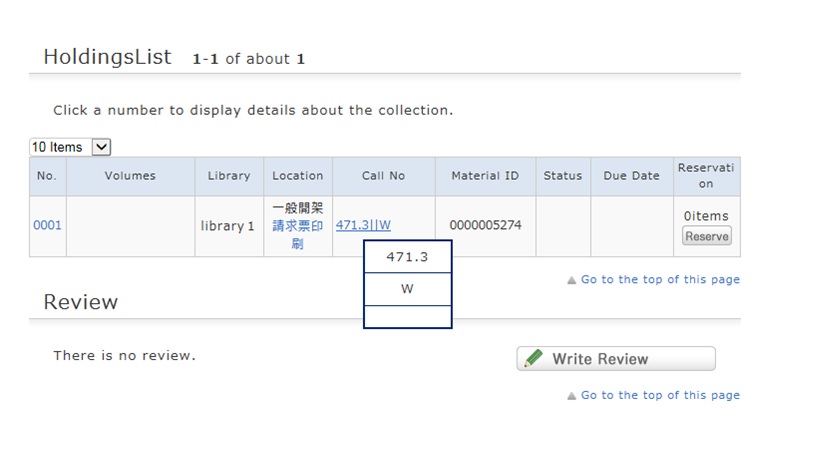
This image corresponds to the label on the book.
The library bookshelves are arranged in order of call number.
From the signs on premises and this number, find the bookshelf.
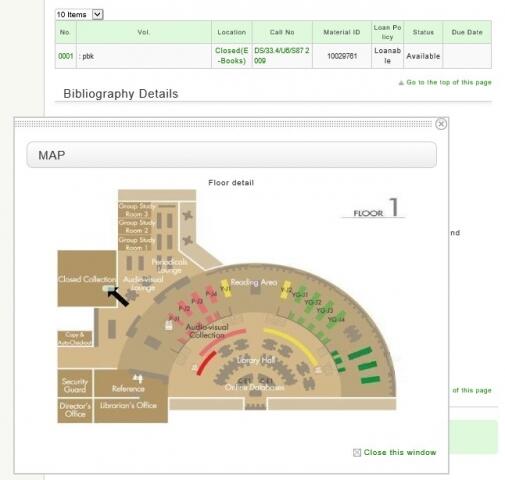
Location of some books are shown on the library map by clicking "Location."
What should I do if the materials found with OPAC are already loaned out?
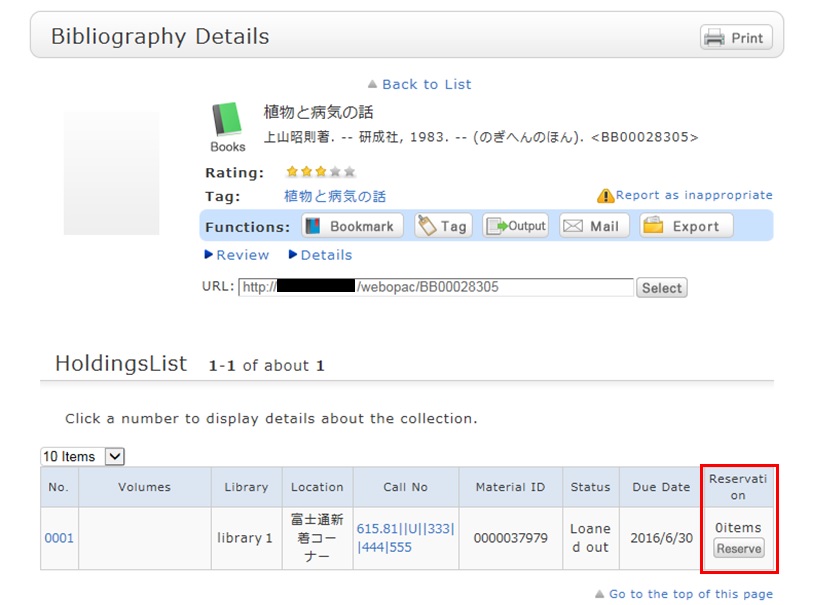
1. Click the [Reserve] button in "Holdings List" on the bibliography details screen.
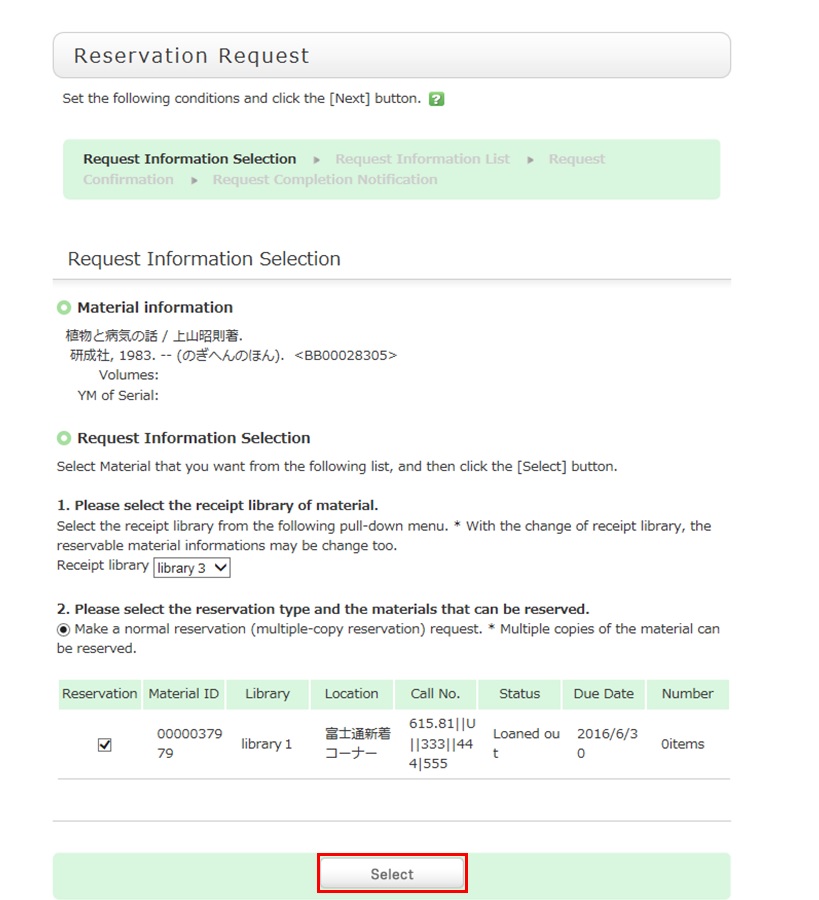
2. Select the request conditions, and click [Select] on the Select Request Conditions screen.
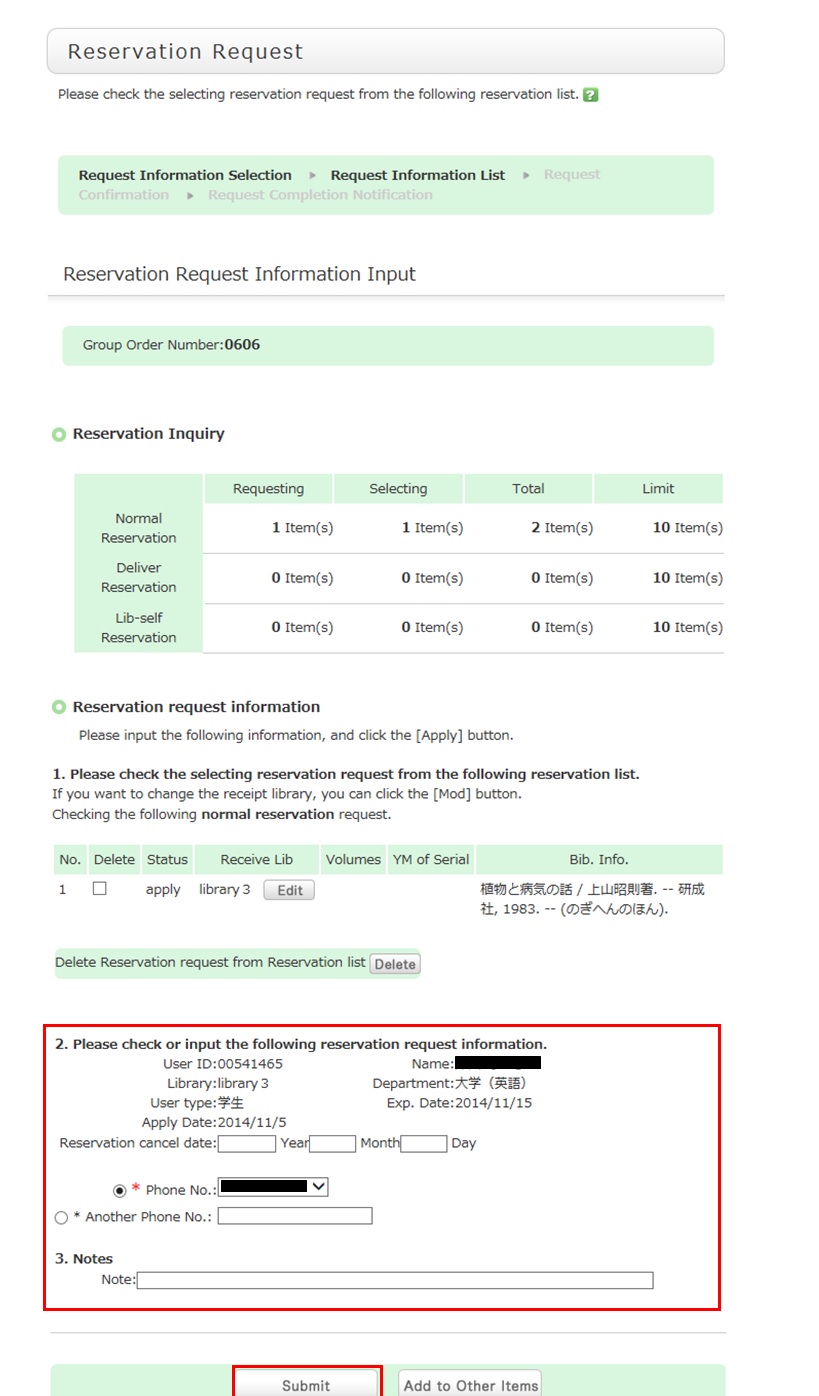
3. Confirm the material information and reservation client information on the request information entry screen. Then, enter (confirm) reservation details. Lastly, click the [Submit] button.
- Reservation cancel date: The reservation is canceled when the entered date has passed.
- E-mail: The library uses it to inform you when your reserved materials are available for check-out. To be contacted at a different e-mail address, fill in the "Change E-mail" field.
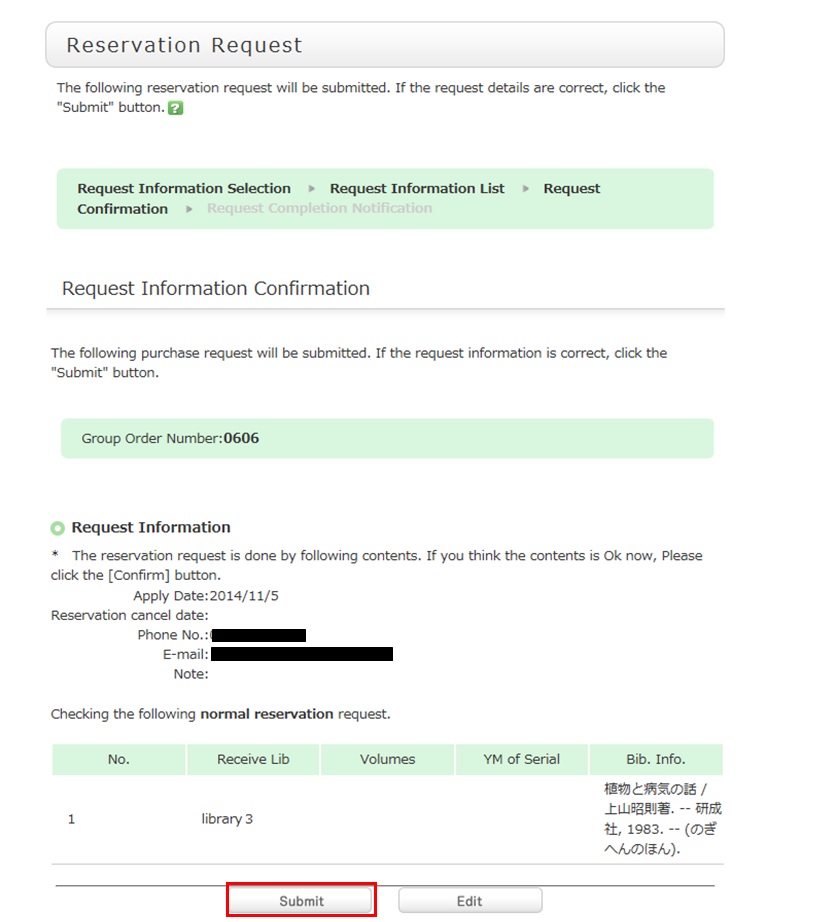
4. Confirm your reservation request details on the request confirmation screen, and then click the [Confirm] button.
5. The reservation is complete when the request completion notification screen appears.
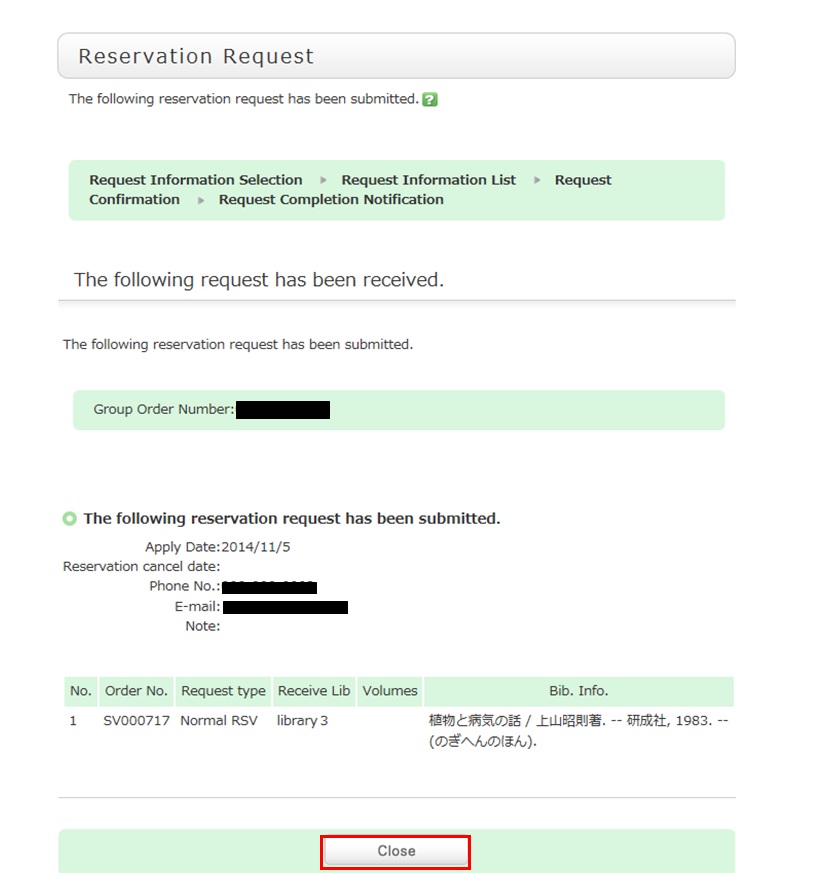
* Reserved materials are on hold for a period of time.
If you do not borrow the materials within this period, the reservation is canceled. So when the library contacts you about the arrival of your reserved materials, visit the library as soon as possible and complete the procedure for borrowing.
What should I do if I want to use materials from a different university library?
Articles cannot be searched. If you want a copy of articles, perform the search with the title of the journalfrom the [Other Uni.] tab. Some fees are charged for the service.
How do I make an ILL borrowing request?
1. First, enter information on the materials you are looking for.
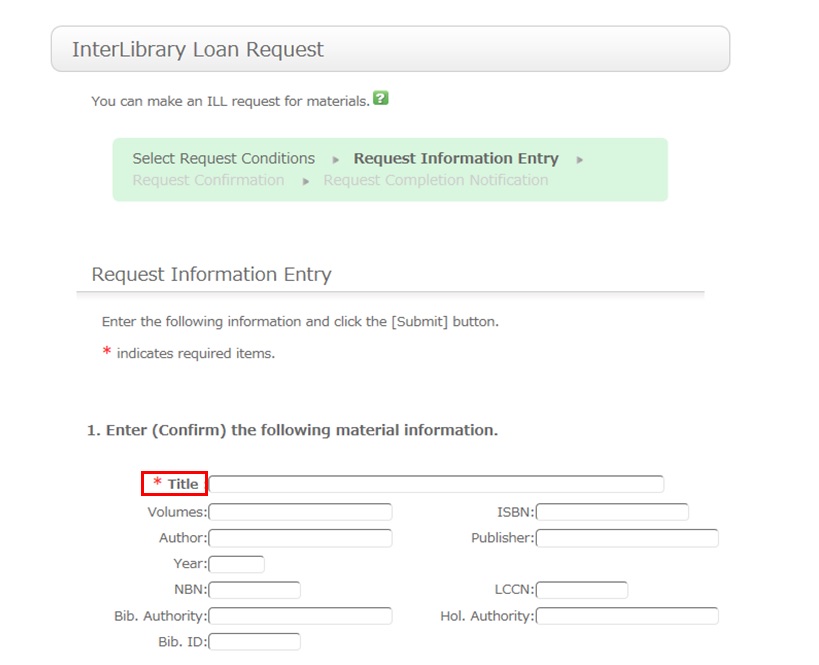
To be certain about obtaining those materials, enter as much detailed information as you can.
In particular, if you found them in a database or other such system, write the name of this system in the bibliography authority.
* Bold characters indicate required fields.
2. Next, enter your own information in the client information fields.
Note that if your contact information has an error, the materials cannot be promptly handed to you.
So be sure to enter the correct contact information for getting in touch with you.
3. Next, enter information about your request, information about the payment method, and remarks.
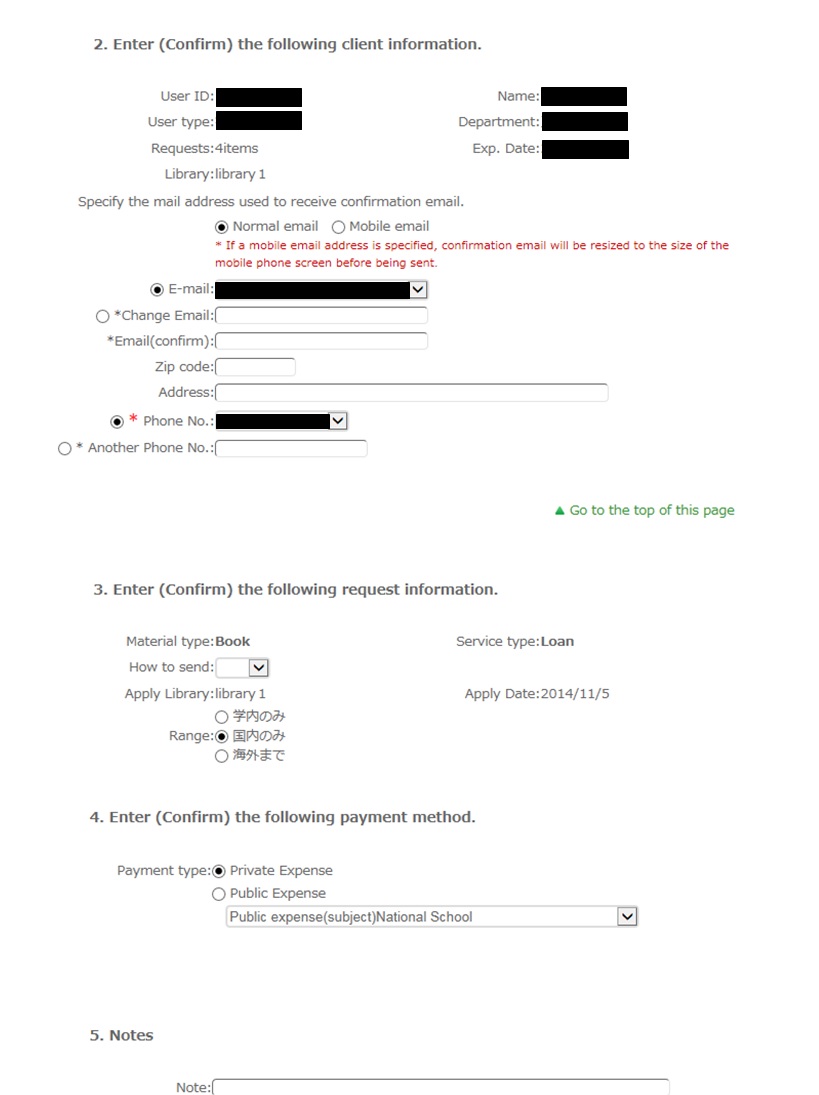
For the payment method, you can select private expense or public expense.
To apply for payment at public expense, you must have a public expense budget.
Once you have entered the above details, click the [Submit] button, and confirm the details on the confirmation screen.
When there are no problems, click the [OK] button to complete the procedure.
How do I cancel a submitted copy request (ILL copy request)?
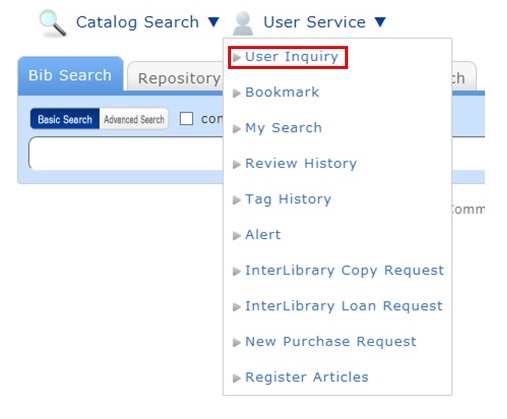
You can confirm your loaned out materials and various requested materials on the user inquiry screen.
Select "Go to Copy Request List" in the information relating to copy requests, among those requests.
As a result, you can check a list of the copy requests that are current requests.
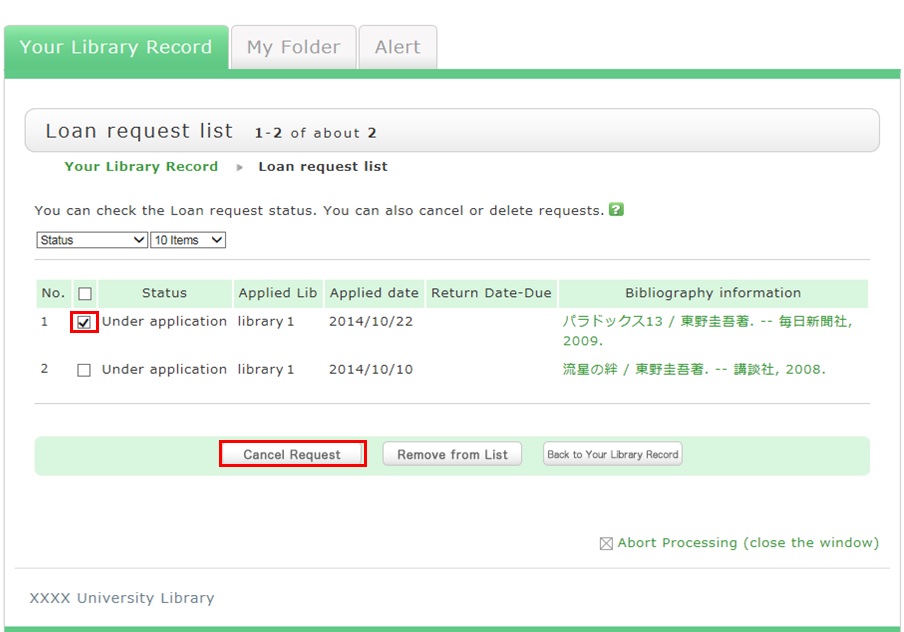
If you want to cancel the request for a material in this list, place a check mark beside the material and click the [Cancel Request] button.
How do I cancel a submitted borrowing request (ILL borrowing request)?
You can confirm your loaned out materials and various requested materials on the user inquiry screen.
Select "Go to ILL Request List" in the information relating to borrowing requests, among those requests.
As a result, you can check a list of the borrowing requests that are current requests.
If you want cancel the request for a material in this list, place a check mark beside the material and click the [Cancel Request] button.
What kind of user services are available?
Category:
5.1. Personal Services
The user services offered are broadly divided into the following three functions.
1. My Library Record
Use this function to browse your current borrowing status, apply for an extension of the borrowing period, and change data such as personal information.
2. My Folder
This function is used to save search conditions, save search results, and browse the history.
3. Alert
This function notifies you of the arrival of new books and serials at the library.
I can't log in to Library website.
Category:
5.1. Personal Services
What can I do from Your Library Record in the Library website?
Category:
5.1. Personal Services
Renewal and export to the book management tool are both possible from the list. To do so, enter a check mark in each appropriate check box.
Click a bookmark title to check the status in detail.
Reservation
Canceling a reservation, deleting one from the list, and export to the book management tool are all possible from the list. To do so, enter a check mark in each appropriate check box.
Click a bookmark title to check the reservation status in detail.
Copy request
Canceling a copy request, deleting one from the list, and export to the book management tool are all possible from the list. To do so, enter a check mark in each appropriate check box.
Click a bookmark title to check the status in detail.
Borrowing request
Canceling a borrowing request, deleting one from the list, and export to the book management tool are all possible from the list. To do so, enter a check mark in each appropriate check box.
Click a bookmark title to check the request status in detail.
Purchase request
Deleting a request from the list and export to the book management tool are both possible from the list. To do so, enter a check mark in each appropriate check box.
Click a bookmark title to check the purchase status in detail.
Borrowing history
Deleting an item from the list and export to the book management tool are both possible from the list. To do so, enter a check mark in each appropriate check box.
Click a bookmark title to check the borrowing history in detail.
What kind of functions does My Folder have?
Category:
5.1. Personal Services
1. Bookmark
This function creates a list of materials on the Web. You can register the books you have already read or plan to read.
The list can also be used as a list for outputting data to EndNote and RefWorks.
2. My Search
This function saves search conditions. So you can perform your next and subsequent searches using the same search conditions.
Can I have a list of materials kept for me to check at a later date?
Category:
5.1. Personal Services
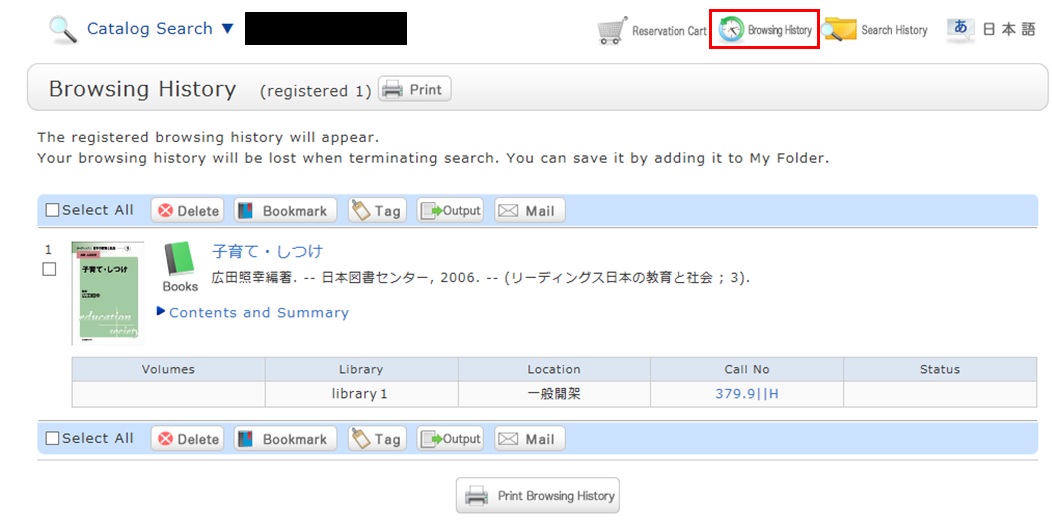
* The screenshot is the screen displayed after "Browsing History" is clicked.
To confirm content at a later date, register it in a bookmark.
Register it in the bookmark from the search result list or the bibliography details screen.
To register a material on the list screen, enter a check mark in the check box of the material, and click the [Bookmark] button.
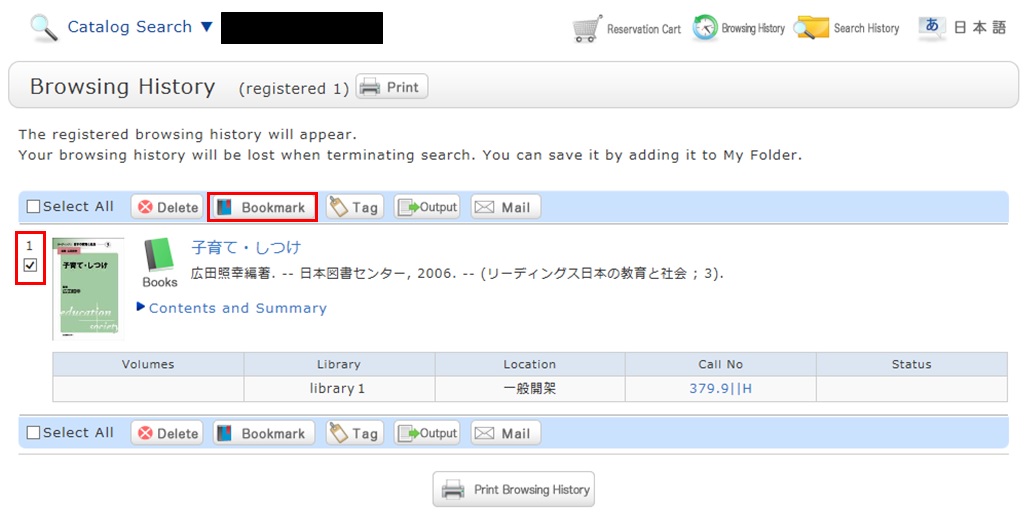
You can check the registered contents from the bookmarks.
I want to save search conditions to use in a search at a later date. Can this be done?
Category:
5.1. Personal Services
You can check the search history by clicking the [Search History] button at the top of the screen.
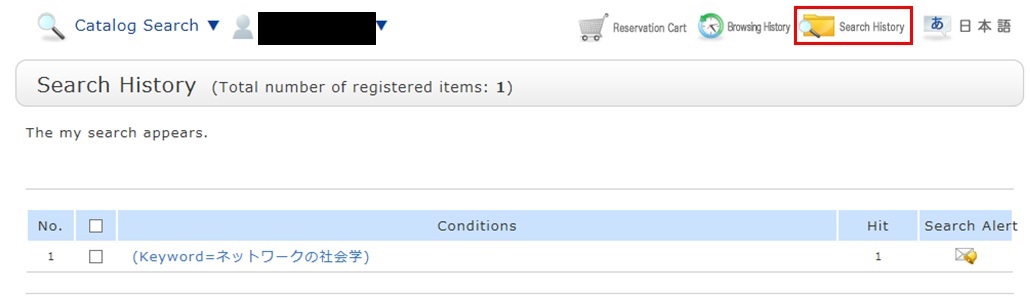
* The screenshot is the screen displayed when "Search History" is clicked.
To save search conditions until a later date by registering them from the search history browsing screen, enter a check mark in the check box of each search condition, and click the [Add to Favorites] button.
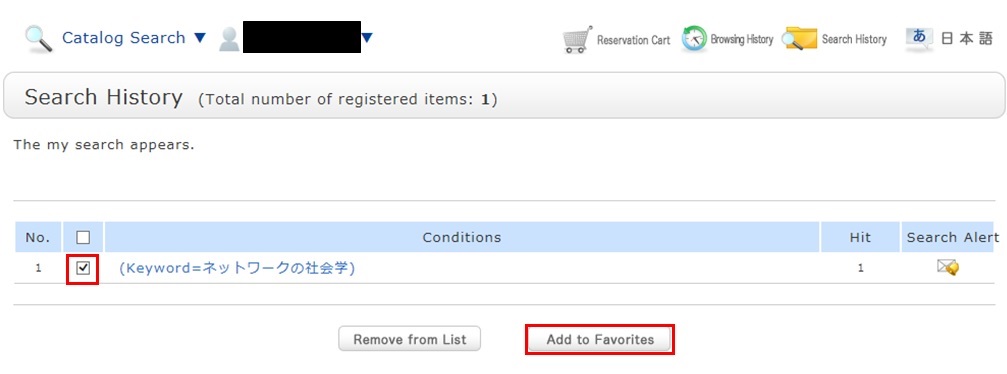
You can check the registered contents from My Search in OPAC.
I want to be notified when the latest issue of the serial _____ arrives. Is this possible?
Category:
5.1. Personal Services
Apply for the alert service from the bibliography details screen.
This service covers serials being received on an ongoing basis.
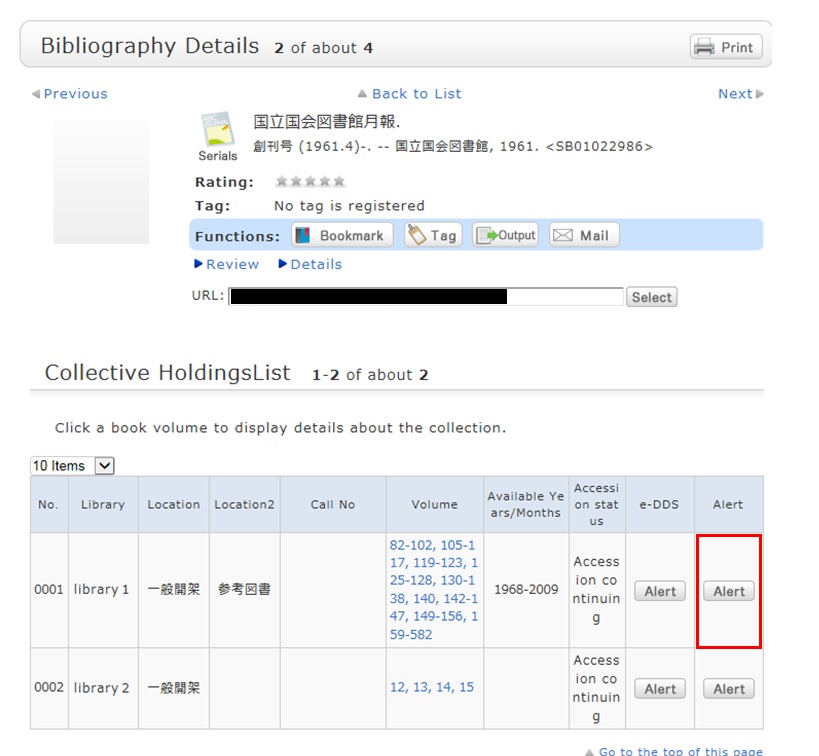
Once you complete your application, the registered conditions appear on the alert list screen.
You can stop the sending of notifications and change the sending frequency on the alert list screen.
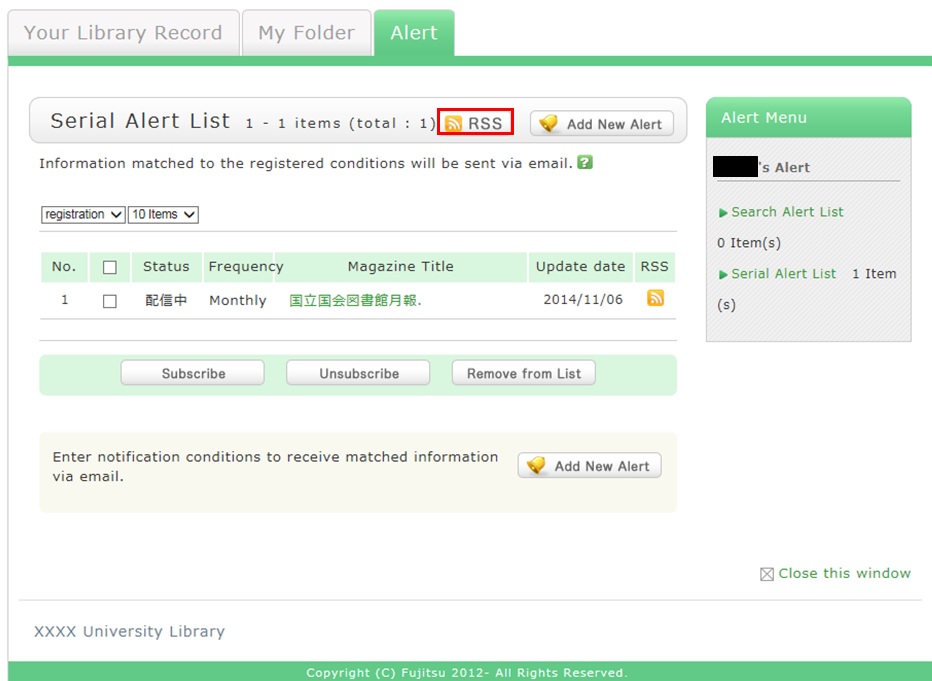
Also, you can register an RSS reader from the [RSS] button.
Once you have registered the RSS reader, you can check for any new arrivals of the relevant materials, even without checking OPAC.
I want to be notified of any books related to _____ received by the library. Is this possible?
Category:
5.1. Personal Services
when the library receives any matching material.
After a search with [AIU Catalog], you can register the search conditions by clicking "Add Search Alert."
You can also register search conditions from Alert.
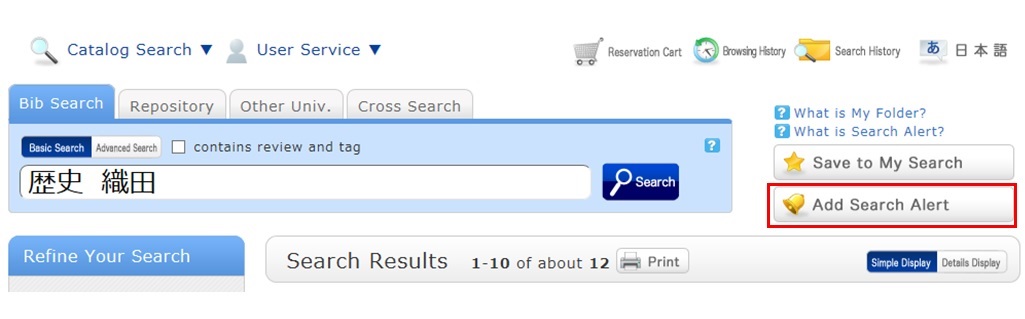
The process of registration displays the Alert list screen.
From there, you can check the list being sent and change the sending frequency.
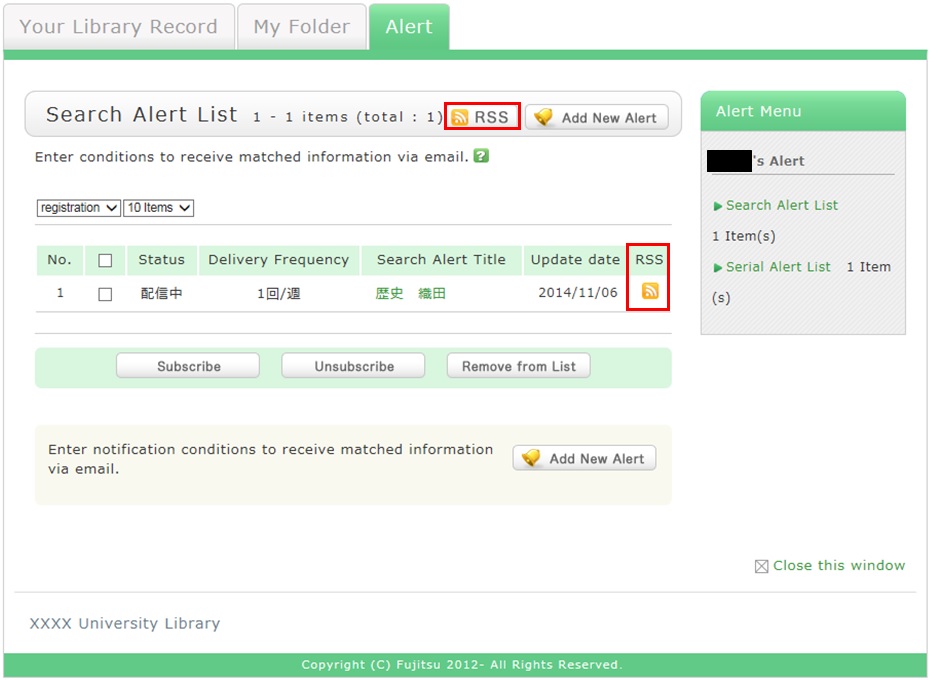
You can register an RSS reader from the [RSS] button.
Once you have registered the RSS reader, you can check for any new arrivals of the relevant materials,
even without checking OPAC.
★I have a book I want to sell.
Category:
4.1. Requests to the Library
★I want to express a question, opinion, or request to the library.
Category:
4.1. Requests to the Library
What is OPAC?
Category:
9. Other
OPAC is the abbreviation for Online Public Access Catalog.
Nakajima Library website offers functions of OPAC.
★What do I do when I don't find the materials I'm looking for on the [Bib Search] tab? (Part 1)
- check the Kanji and spelling of keywords to see whether they are correct.
- Are searching by "Article title" or "Article author"? Try searching by serial title.
When you want to search by "Article title" or "Article author," try searching from the [ONE-Search] tab. In such cases, you may also be able to read the text of electronic journals from a personal computer. - If you still do not find the materials you are looking for, try searching from the [Other Univ.] tab.
If you can confirm that the library of another institution possesses the materials you are looking for, you may be able to get them from the library.
★What do I do when I don't find the materials I'm looking for on the [Bib Search] tab? (Part 2)
1. Search the holdings of other university libraries, and apply to get the book or a copy (ILL copy request and ILL borrowing request) from the relevant library.
→ Perform the search from the [Other Univ.] tab.
2. Search the holdings of Akita Prefectual library and university libraries, and request borrowing.
→ Perform the search from the [Akita Pref Lib.] tab by selecting a neighborhood public library, university library, etc.
3. Request purchase from user service.
* Getting a book or inter-library loan from a library or other such other organization takes time. Due to a variety of reasons, it may also be impossible to get materials from libraries. For details, consult the library staff.
What do I do when I want to extend the borrowing period of a loaned out book?
1. First, log in to OPAC.
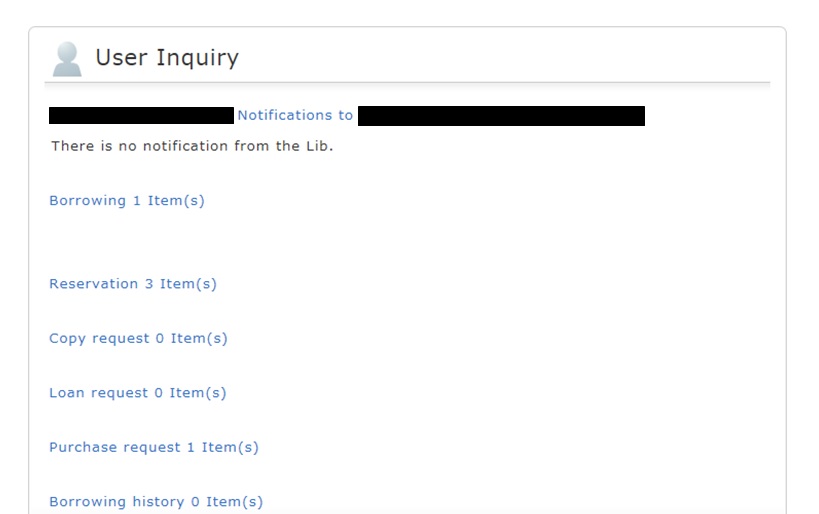
2. "User Inquiry" appears after login. Click "Borrowing" there.
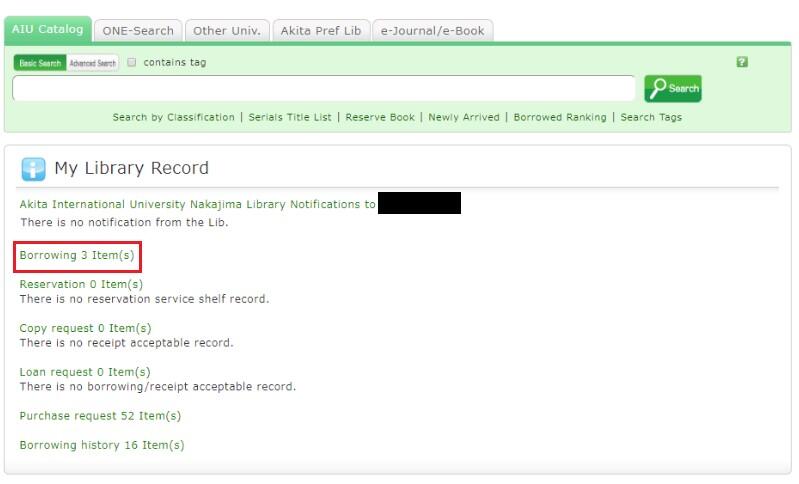
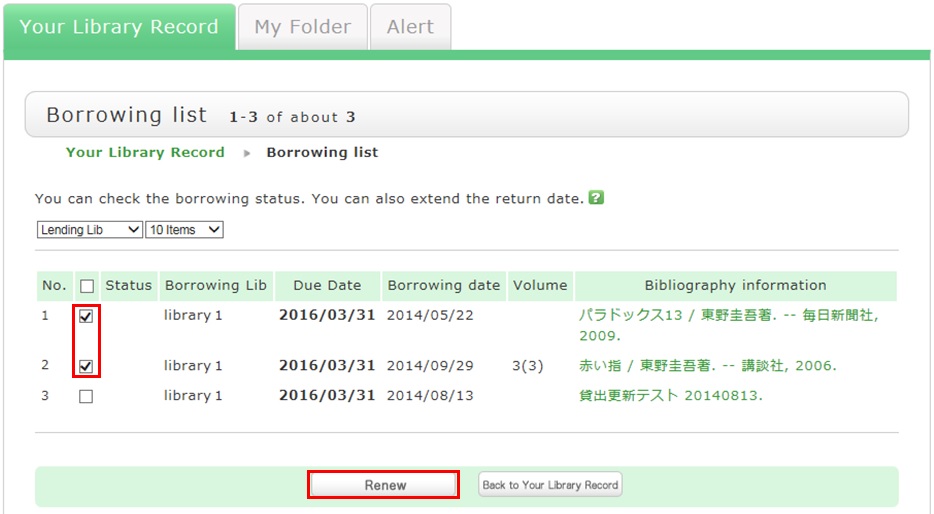
3. "Borrowing list" appears. Place a check mark beside each material you want to renew, and click [Renew].
In "Borrowing list," you can check the borrowing status: where (borrowing library), what (bibliography information), and when (Due Date).
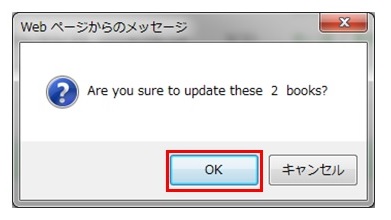
4. Click [OK] in the pop-up.
5. The update is completed when the return date is extended.
If the update cannot be completed, the screen displays this fact and the reason for it.
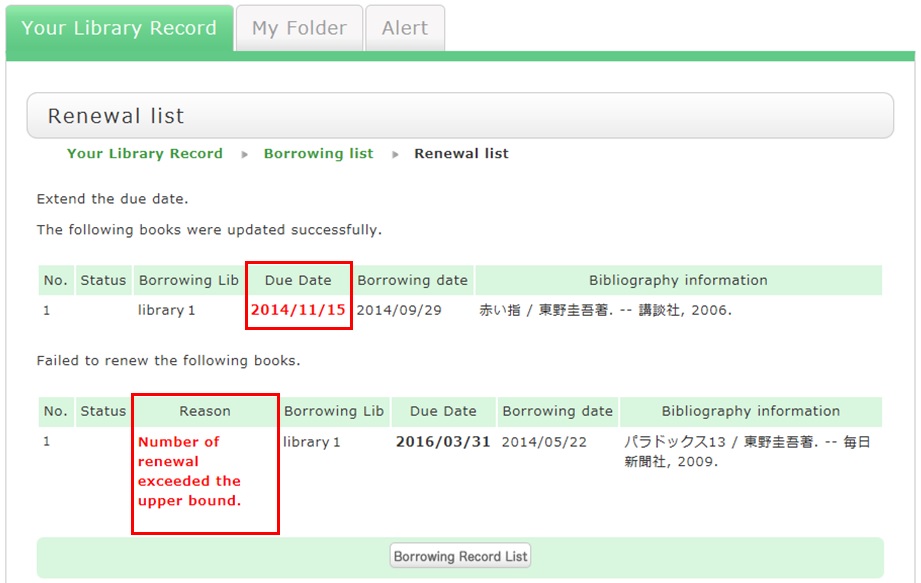
From "Borrowing list", you can check the number of renewals by clicking "Bibliography information" for loaned out materials.
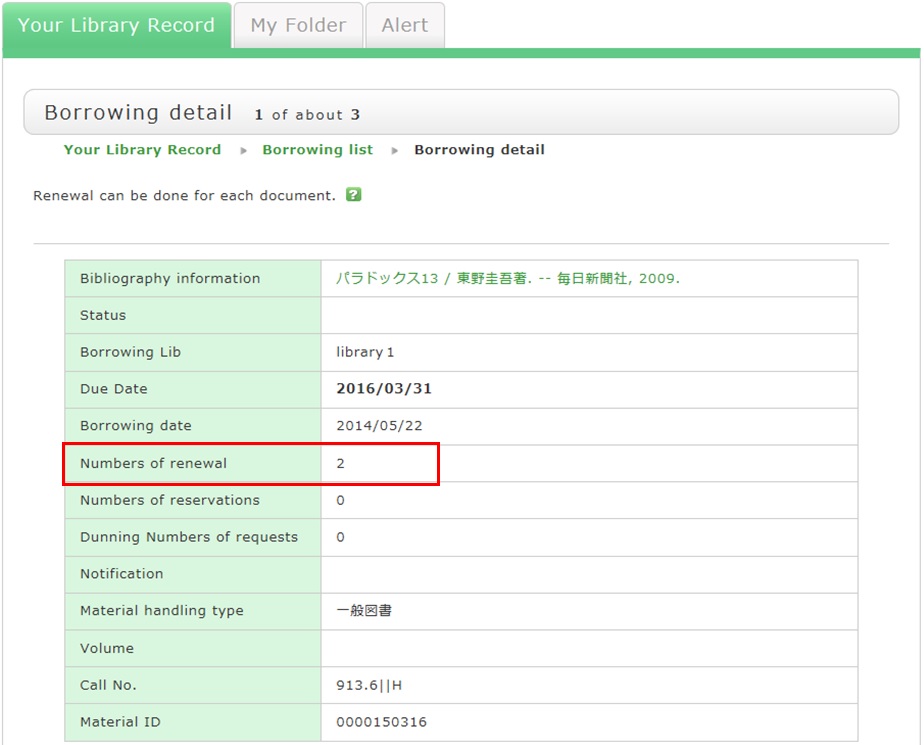
Note the following points concerning renewal.
- An online renewal is updated on the day that the update process is executed. Note that the borrowing period is not an added period from the due date.
- Renewal is not possible in the following cases:
- Materials already reserved by another user
- Overdue materials and materials in a restricted borrowing period
- Where update may not be possible depending on the material type (textbooks, serials, etc.)
How do I cancel a reservation?
1. Log in to OPAC.
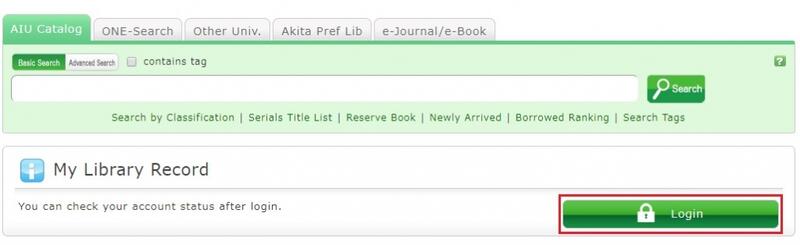
2. Click "Reservation" from User Inquiry.
3. The reservation list screen appears. Place a check mark beside the material whose reservation you want to cancel, and click [Cancel Reservation].
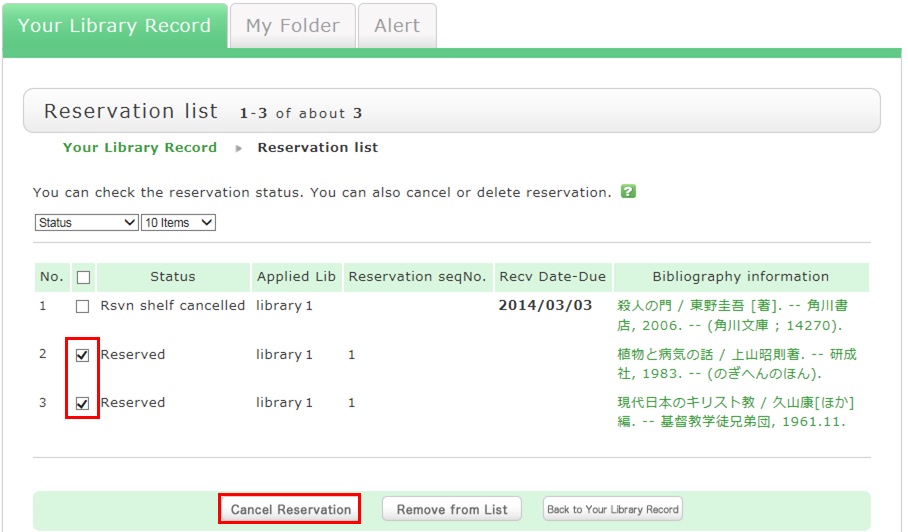
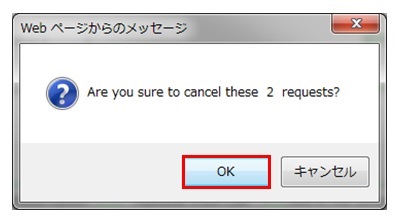
4. Click [OK] in the pop-up.
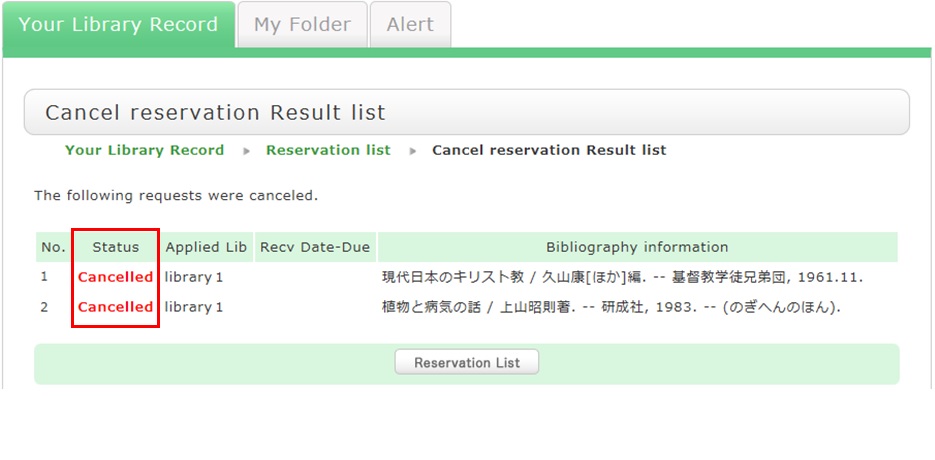
5. "Canceled" appears under Status upon the completion of the reservation cancellation.
★What happens when materials become overdue or have borrowing restrictions?
Be sure to return all materials within their borrowing period.
[Notice]
- Libraries/rooms have book drops. Any materials returned after hours to the book drop of a library are basically considered returned on the previous business day with the return processed on the next business day.
- Regisitration and certification services may be suspended for long overdue accounts.
How do I import book information from [AIU Catalog] to RefWorks?
- You can import book information from OPAC to RefWorks from the following screen.
- You can import book information directly (direct import) to RefWorks.
- Register as a new user only the first time.
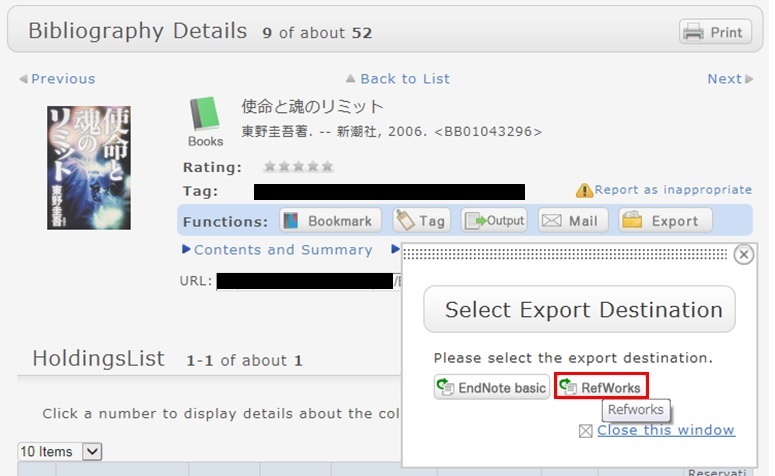
- Click "Book Management" on the bibliography search result list screen or bibliography details screen.
(The bibliography to be imported must be selected on the bibliography search result list screen.) - The "Select Export Destination" pop-up appears. Select "RefWorks."
- The selected bibliography is imported to RefWorks. (If you have not logged in yet, the login screen appears. In that case, enter your login name and password.)
Reference:
RefWorks (SUNMEDIA)
★I want to copy library materials. Does the library have any photocopiers inside?
Category:
9. Other
Please submit an application form to the counter. It costs 10 yen per a copy.
Long-term loan
Category:
9. Other
Note that the borrowing period cannot be extended for graduates and people outside the university.
Lost books
Category:
9. Other
In general, people who lose, damage, stain, or destroy library books are required to pay the replacement cost.
I want to borrow a book but forgot to bring my student card (library card).
Category:
9. Other
This policy prevents anyone impersonating you from borrowing books.
What if I can't find a book that hasn't been loaned out or I can't find an issue of a serial in the library's collection?
Category:
9. Other
- Someone else in the library is using the book or serial.
- The book is in the new arrival area.
- The book is so large that it is placed on the bottom shelf.
- Library clerks are processing the returned book or serial.
- The book or serial is currently being bound.
- The previous user did not return the book or serial to its proper location.
★What is the limit on the number of books borrowed?
Category:
9. Other
Graduate Students --- up to 20 items
Faculty and Staff --- up to 30 items
★How do I return books to the library after hours?
Category:
9. Other
Where do I check out and return books?
Category:
9. Other
★Can I get printouts from with my personal computer while in the library?
Category:
9. Other
★Serial back issues
Category:
9. Other
If you do not find the serial you are looking for, ask about it at the counter.
How do I fill in the purchase request screen?
Category:
4.1. Requests to the Library
How to request Library materials.pdf
Opening Hours
| Sun | Mon | Tue | Wed | Thu | Fri | Sat |
29 | 30 | 31 | 1 | 2 | 3 | 4 |
5 | 6 | 7 | 8 | 9 | 10 | 11 |
12 | 13 | 14 | 15 | 16 | 17 | 18 |
19 | 20 | 21 | 22 | 23 | 24 | 25 |
26 | 27 | 28 | 29 | 30 | 1 | 2 |


Access from Cellular Phone